> For the complete documentation index, see [llms.txt](https://docs.stylemixthemes.com/llms.txt). Markdown versions of documentation pages are available by appending `.md` to page URLs; this page is available as [Markdown](https://docs.stylemixthemes.com/globalstudy/masterstudy-lms-course-features/course-builder.md).
# Course Builder
## How to add a course
How to add a new course and set it up? Look for the answers in this article and learn how to add and maintain courses with the easy-to-use LMS via both backend and frontend builder.
### Add a new course via Backend Course Builder
MasterStudy LMS course builder allows users to create beautiful and practical online courses.
The first thing you need to do is go to the **STM LMS > Courses**. Click the **Add New** button and start creating content for your new course.

After that, you will be redirected to the course editing page. This page is divided into different sections: content, course curriculum, course settings, publishing options.

Add a title to the course and enter the description.

Create a thorough **Curriculum** for your course.
In this step, you can add new sections, lessons, quizzes, and assignments to the course. If you want to use existed lessons or quizzes, use the **Search option** and choose one from early created.
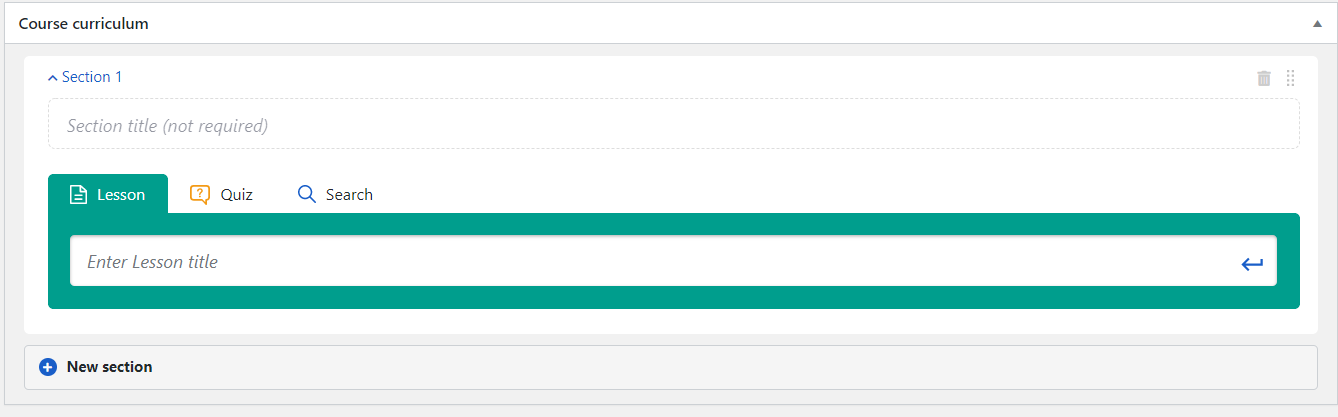
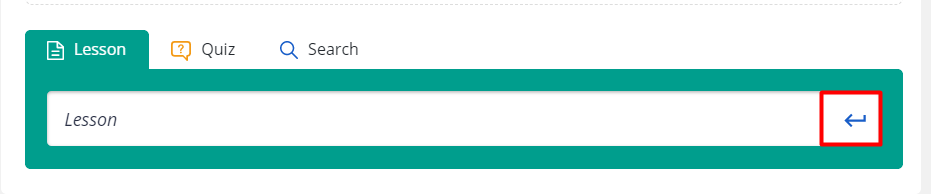
Add a title to your lesson or quiz and click **Enter** to add a new item.
For lesson:

For quiz:

Once you added the items you can easily edit them, just hover over the lesson/quiz and click Edit.

You can also change the order of the items by using the drag and drop tool.

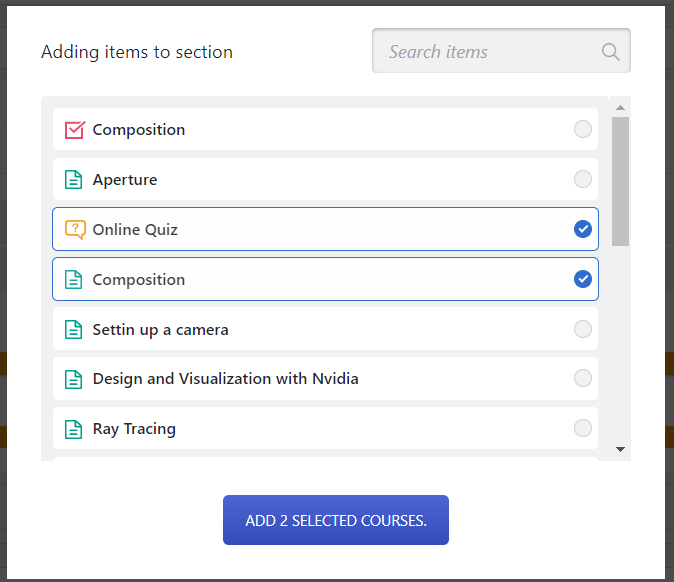
Use the **Search** tab to search for the existed lesson. After you click on the tab, a new popup will open. Here you can find a Search field where you can enter the title of the lesson/quiz and select the needed one from the list. Just check the required items and click **Add selected.**
### Add a new course via Frontend Course Builder
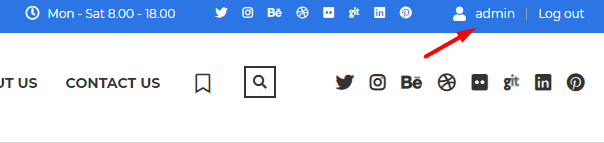
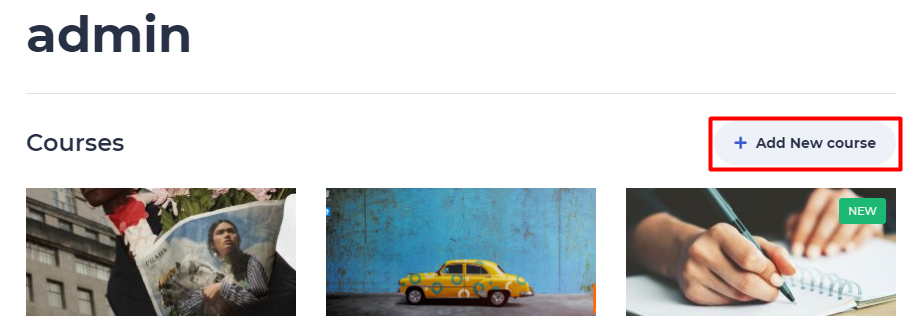
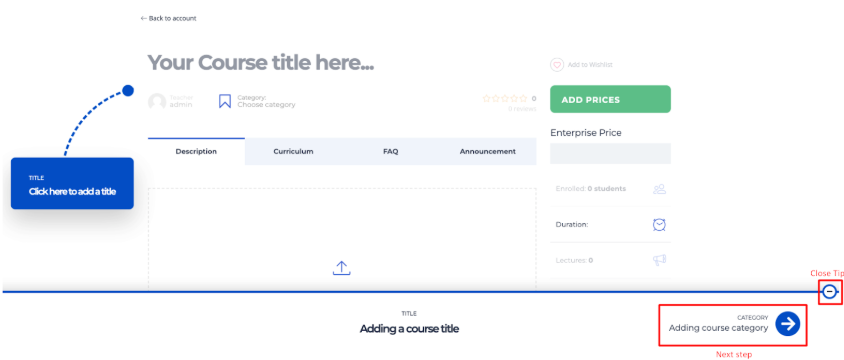
If there are many instructors registered, they can use our frontend course builder. Each of the instructors will have its personal Admin panel or Profile page. This panel is very easy to use. To add a new course, go to your profile and click the **Add New Course** button.
Start filling in the content.
We provided tips for you with a short description of each section to simplify navigation. Switch from one part to another by clicking the Arrow button at the bottom of the page. Click on the Close icon to turn off tips.
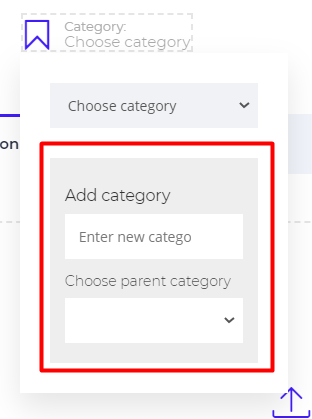
Also, you can add a new category via the frontend course builder.
{% hint style="info" %}
Note for **website admin**: You need to allow instructors of the website to add new categories first. For this go to **STM LMS > Course** and activate this option:
{% endhint %}

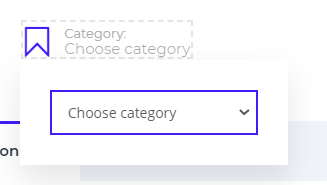
After this, instructors will be able to add categories via frontend course builder. Reveal the dropdown menu of the Category and choose the option **Add new category**.
You can add multimedia content to your course, give it a full description, add a featured image.
Here also you can create a proper **Curriculum** for the course, enter announcements and fill in the FAQ section.
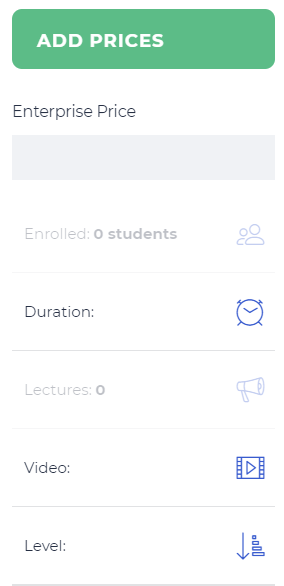
Use the right panel to set the price for individuals and groups, specify course duration and level appropriate.
#### Add and edit lessons and quizzes
After you entered all the necessary information in the **Description** part, move on to the **Curriculum**.
In this sector, you can add and edit lessons and quizzes. Divide lessons into sections, give unique titles to organize your syllabus in the most convenient way.

Enter the title for your lesson and click enter to add a new item. The same is applicable to Quiz.
As soon as you create your course plan you will be able to edit and delete information. Work with the list as shown below to apply the required changes.
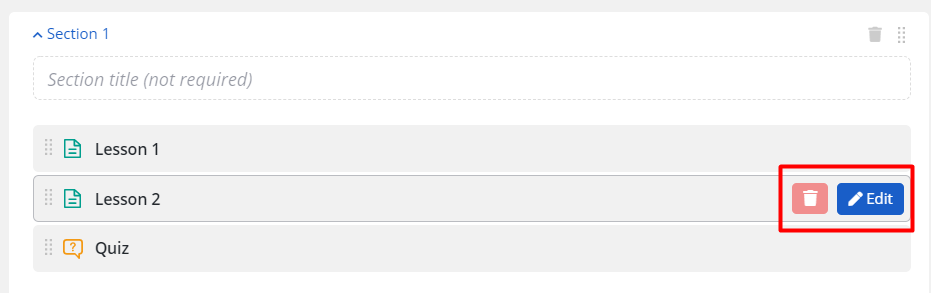
Choose a lesson you want to edit and click on the **Edit** icon. Add some content to this lesson, choose any format and insert material.


Open the **Lesson Settings.** Here you can:
* determine the lesson type
* upload a video poster
* attach video URL
* specify the lesson duration
* activate preview
* write a description

Lesson types available - **Text, Video, Slide, Stream.** Expand the drop-down menu to select an option.

**Save Changes,** so the settings could be applied.
#### **Edit quiz**
Choose a **Quiz** you want to change and click on the **Edit** icon. Add the content to the Quiz and make up questions.

Go to **Settings**, where you can:
* enter a description
* specify quiz duration (time format available - minutes, hours, days)
* activate the display of correct answers
* determine passing grade
* indicate the number of **percentages\*** that will be cut down from the total number of points after quiz retake.
{% hint style="info" %}
\*Do not enter the percentage symbol, it is applied by default.
{% endhint %}

**Save Changes** and once you finished entering the information, press the **Publish Course** button to launch a new course.
Check its availability on the **Courses** page.

## Content
After that, you can move to the content part.
In the block provided enter the course description or add some relevant information, write what the course is about, add some media.
You can use the classic editor:

Or switch to the WPBakery Page Builder and add different elements, text blocks, or even templates.

## Curriculum
The **Course curriculum** includes sections, lessons, quizzes, assignments (available on the pro version, only if the addon is enabled), and a search field.

If you want to divide your course into sections, enter their titles. By clicking on **Section 1** you can collapse or expand the section content. On the right side, you can find **Delete** and **Move** (organize the order of items) options.

To add a new lesson add its title and click Enter. You can add an unlimited number of lessons.

Quizzes can be added using the same process. Switch to the quiz tab, add the title and click Enter.

The same works for the assignment

Once all items are added you can organize the order, drag and drop the items to set the required sequence of lessons and quizzes.

Items can be deleted and edited. When you hover over the specific lesson/quiz/assignment on the right side the options **Delete** and **Edit** appears. Click Delete if you want to remove the item, or click Edit to manage it.
{% hint style="info" %}
When you click Edit, you will be redirected to the page of that specific course item. See instructions on how to work with: [Lessons](https://docs.stylemixthemes.com/masterstudy-theme-documentation/lms-courses/masterstudy-theme-manual-lessons), [Quizzes](https://docs.stylemixthemes.com/masterstudy-theme-documentation/lms-courses/masterstudy-theme-manual-quizzes), [Assignments](https://docs.stylemixthemes.com/masterstudy-theme-documentation/masterstudy-lms-pro-addons/masterstudy-theme-manual-assignments).
{% endhint %}

## Course Settings

#### Set up the Course
#### Settings
Scroll down the page and go to the **Course Settings**. Clarify course info and requirements in the **Settings** section.

Here you can:
* Mark the course as Trial (only if the addon 'Trial Courses' is enabled)
* Make the course Featured
* Set course views (beginner, intermediate or advanced)
* Set course level (add new custom Levels in STM LMS Settings > Course)
* Specify the number of current students
* Enter course duration
* Enter the total duration of video materials
#### **Course Price**
Enable One-time purchase to make the course available for purchase not only through the membership plans. Enter the number in the blank to set the course price, or leave the field empty to make the course free.
You can also set the **Sale Price**, **exclude the course from membership and specify the points price.**
You can enable the options of affiliate course, this includes additional settings such as button text and button link which you can enter.

You can also use the Enterprise Price option which is the premium feature of PRO version of the plugin. You will see the notification that it is Available in PRO Version with the link to the PRO plugin.
When the option is enabled, enter the numbers.

#### **Expiration**
The Course **Expiration** function allows you to limit access to the course based on the student’s enrollment date. Follow the Expiration Tab and enable the **Time Limit** function.

Specify the number of days after which the course will expire.

Now, when enrolling in the course, users will see the number of days remained before the course will be inaccessible. Also, once enrolled the student will be notified about course expiration.

#### **Announcement Tab**
Make important announcements for your learners whenever you need to. Write your text in the space provided.

#### **FAQ Tab**
Create the FAQ section to predict possible misunderstandings. Add one by one: items, questions, and answers.

Click on the New FAQ item to add a new question and answer. Enter the question/answer in the spaces provided.

#### Course Files
This section allows you to add course materials - simply upload a file of any format. Click on the Plus icon to upload a new file.

Enter the title for the file and click Choose File to browse the file on your PC.

There are also two tabs: **Prerequisite and Content Drip** which are the premium features of PRO version of the plugin. If you are using the free version you need to upgrade the plugin.

If you have already installed the PRO version of MasterStudy LMS, be sure to enable Prerequisite and Content Drip Addons.

Once enabled you can set up the options.
#### Content Drip
In **sequential drip content** add the dependency of lessons. Add **must be done** lesson, then add the target lesson which will be unlocked after the first one is completed.


#### Prerequisite Courses
In Prerequisite Courses simply add the course that a user will need to finish to unlock the course you are currently editing.

#### Certificate
The certificate tab allows you to select the pre-made certificate from available options that will be awarded for completion of this course.

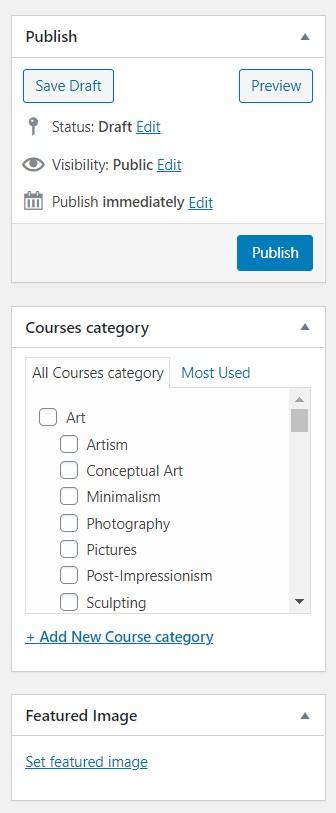
#### Publish & Course Category
On the right side of the page you can choose a category for the course (add a new one if you don’t have any). Set featured image, change common settings like visibility and status, preview and publish a course.
---
# Agent Instructions
This documentation is published with GitBook. GitBook is the documentation platform designed so that both humans and AI agents can read, navigate, and reason over technical content effectively. Learn more at gitbook.com.
## Querying This Documentation
If you need additional information that is not directly available in this page, you can query the documentation by asking a question.
Perform an HTTP GET request on the following URL with the `ask` and `goal` query parameters:
```
GET https://docs.stylemixthemes.com/globalstudy/masterstudy-lms-course-features/course-builder.md?ask=&goal=
```
`ask` is the immediate question: it should be specific, self-contained, and written in natural language.
`goal` is what the user is ultimately trying to achieve, the reason they need the answer. Sharing it helps GitBook give you a better, more relevant answer. A goal is most helpful when it describes the outcome the user wants rather than restating the question. For example, with `ask=how do I create an API token`, a goal like `automate deployments from our CI pipeline` lets GitBook tailor the answer to that use case.
The response will contain a direct answer to the question and relevant excerpts and sources from the documentation.
Use this mechanism when the answer is not explicitly present in the current page, you need clarification or additional context, or you want to retrieve related documentation sections.