> For the complete documentation index, see [llms.txt](https://docs.stylemixthemes.com/llms.txt). Markdown versions of documentation pages are available by appending `.md` to page URLs; this page is available as [Markdown](https://docs.stylemixthemes.com/masterstudy-lms/~/changes/D1BUqzsdqYuUfTmFZIuo/lms-pro-addons/live-streaming.md).
# Live Streaming
The Lesson Live Stream enables instructors to conduct online classes by utilizing third-party services, specifically the video platform YouTube. This feature allows you to engage with your students effectively by providing study materials, enabling them to contribute comments and questions through the Live Chat, and receiving immediate feedback.
You can also save the stream as the video lesson and add it to one of the lessons, so the students who missed Live Stream will be able to watch it later.

To activate live streams, go to **STM LMS Settings > Addons** and enable the addon.

Once enabled you can change the lesson type to Live Stream (you can select the type in Lesson settings on the lesson editing page).

You will be able to set additional options like specify the stream start/end time and date.

Use YouTube to launch a live stream lesson.
{% hint style="info" %}
Learn [here](https://support.google.com/youtube/answer/2474026?hl=en) how to use live streaming on Youtube.
{% endhint %}
Further, you need just to embed a stream directly into the lesson. Don’t forget to make the stream private, so only users with the link can access ut. Once you set up the video on YouTube, click on the **Share** button under the player.
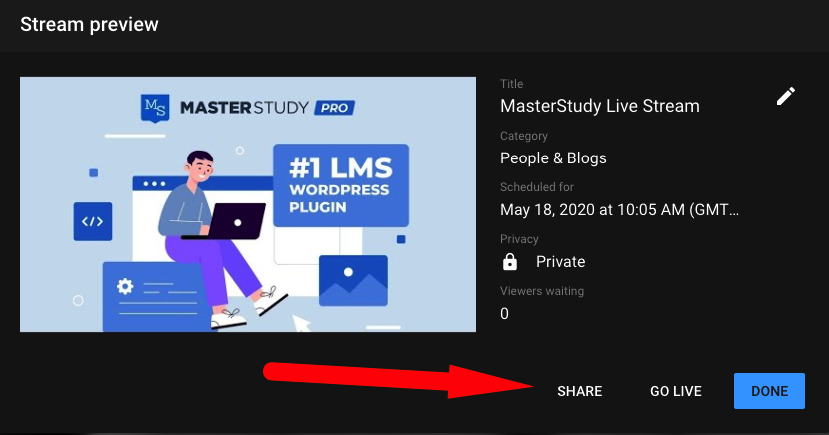
Next, in the popup find the button **Embed** and click on it.
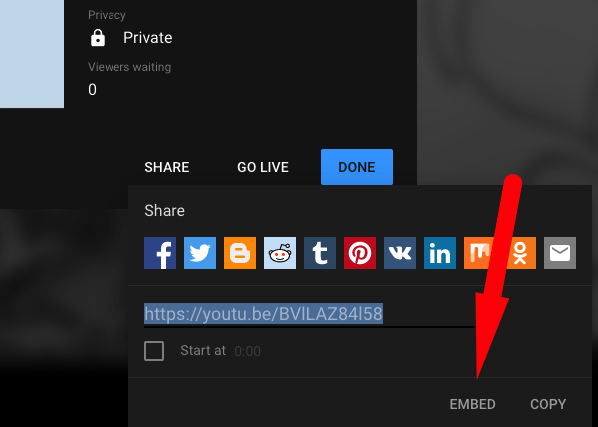
Now you will see the iframe code where you need to copy just a part of it. The link should include "**embed**" word. Copy the link as shown in the image below.
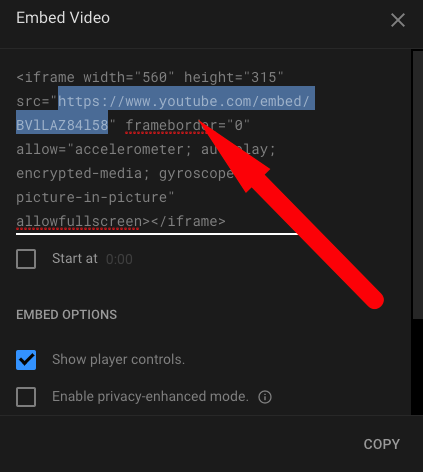
Use this link to add the video to the lesson page. Just paste it in the **Lesson video URL** field.

## Using Frontend builder
Also, you can open any course straight from your profile page via frontend builder and choose one lesson in your Сurriculum.

Go straight to the **Lesson Settings.** From suggested options on **Lesson Type** choose **Stream** in the drop-down menu. Next, set the time and date for the stream and add the video URL.
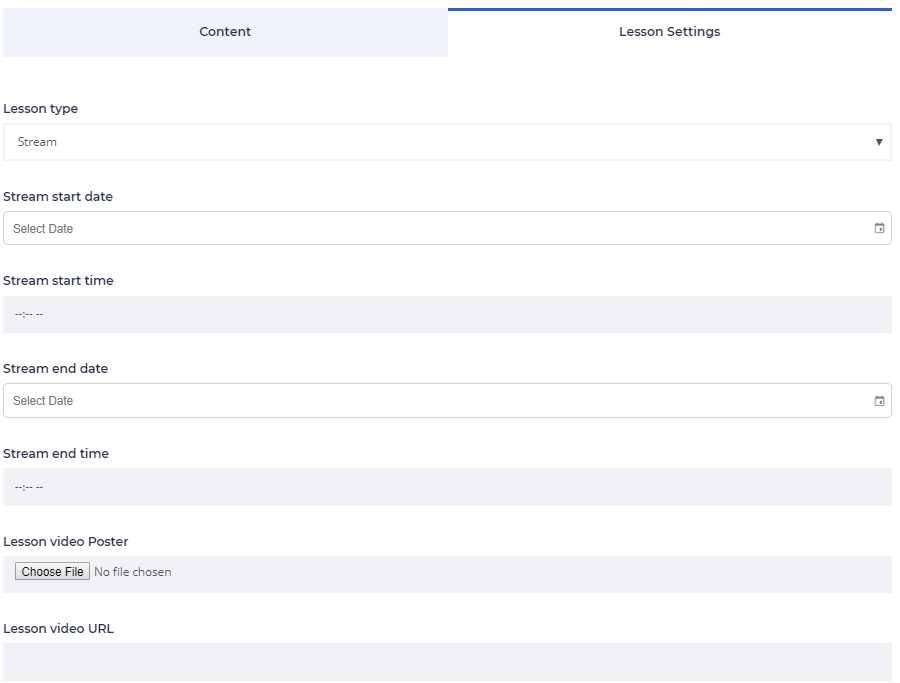
Before the Live Stream, students will see the **countdown** till the start time. For the correctness of the countdown pay attention to the Time Zone you set.
The time zone automatically updates from WordPress General settings. So if you need to change it, follow the **general settings (Settings > General).**[
](https://docs.stylemixthemes.com/masterstudy-theme-documentation/masterstudy-lms-pro-addons/masterstudy-theme-manual-the-gradebook)
---
# Agent Instructions
This documentation is published with GitBook. GitBook is the documentation platform designed so that both humans and AI agents can read, navigate, and reason over technical content effectively. Learn more at gitbook.com.
## Querying This Documentation
If you need additional information that is not directly available in this page, you can query the documentation dynamically by asking a question.
Perform an HTTP GET request on the current page URL with the `ask` query parameter, and the optional `goal` query parameter:
```
GET https://docs.stylemixthemes.com/masterstudy-lms/~/changes/D1BUqzsdqYuUfTmFZIuo/lms-pro-addons/live-streaming.md?ask=&goal=
```
`ask` is the immediate question: it should be specific, self-contained, and written in natural language.
`goal` is optional and describes the broader end goal you are ultimately trying to accomplish on behalf of the user. GitBook uses it to tailor the answer towards what is most useful for that goal.
The response will contain a direct answer to the question and relevant excerpts and sources from the documentation.
Use this mechanism when the answer is not explicitly present in the current page, you need clarification or additional context, or you want to retrieve related documentation sections.