# Listing Info Card

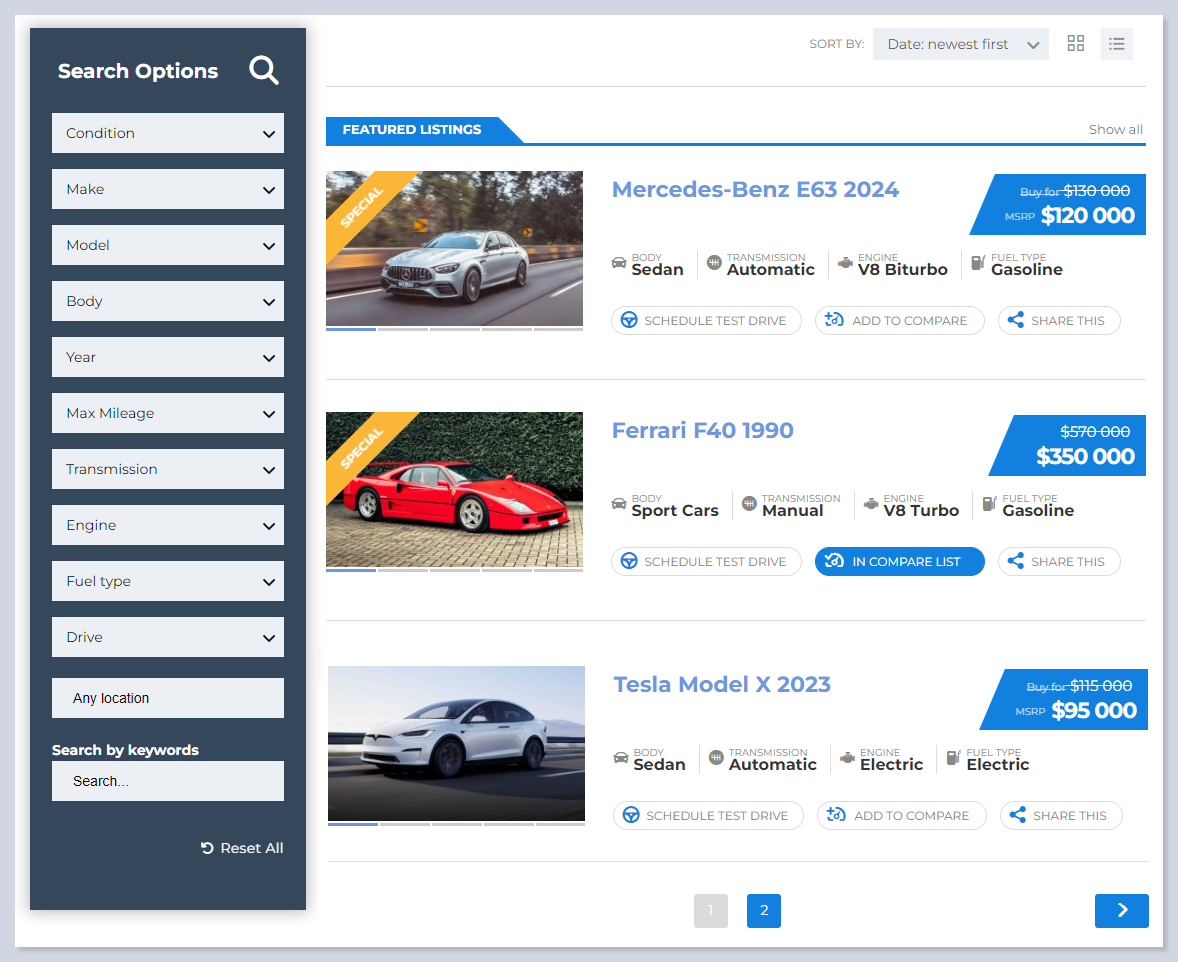
The **Listing Info Card** tab allows you to configure how individual vehicle listings are displayed on the [**Search Results Page**](/motors-car-dealer-classifieds-and-listing/search-filter/search-results-page.md). You can customize the display mode, manage buttons and listing details, and define automatic title generation for listings.

Follow **WP Dashboard > Motors Plugin > Search Results Page > Listing Info Card** to reach the tab:

<figure><img src="/files/fOk90zywA19ugmXo6rZ1" alt=""><figcaption></figcaption></figure>

{% hint style="info" %}
Settings of the tab differ by the[ **Grid** ](#listing-info-card-settings-for-grid-view)and [**List**](#listing-info-card-settings-for-list-view) view modes.
{% endhint %}

{% tabs %}
{% tab title="GRID (Classic Skin)" %}

<figure><img src="/files/Z3Rq8CzcxINkmuwtHStA" alt=""><figcaption></figcaption></figure>
{% endtab %}

{% tab title="GRID (Modern Skin)" %}

<figure><img src="/files/7aGVAJPQ1wC9CD15UKBL" alt=""><figcaption></figcaption></figure>
{% endtab %}

{% tab title="LIST (Classic Skin)" %}

<figure><img src="/files/hCwo3Si3blXOEv8gIP1n" alt=""><figcaption></figcaption></figure>
{% endtab %}

{% tab title="LIST (Modern Skin)" %}

<figure><img src="/files/XXi0QILBb2txOw2KgbyS" alt=""><figcaption></figcaption></figure>
{% endtab %}
{% endtabs %}

All of the settings have special **PREVIEW** buttons to give you an illustration about the settings' functionality:

<figure><img src="/files/dVYQ0jQhzaa0R0QUxDrL" alt=""><figcaption><p>Example usage of the Preview buttons</p></figcaption></figure>

## **Autogenerate a listing title**&#x20;

The title will be generated based on the listing categories. Enter the slug of the listing categories that you wish to display as a listing title, for example, **{condition} {make} {serie} {ca-year}**. Leave this field empty for a custom title for each listing.

<figure><img src="/files/8sAuGdbK510qQd7oq34k" alt=""><figcaption></figcaption></figure>

***

## **Show the First Two Words of the Listing Title as a Badge**

Enable this option if you wish to label the two first parameters listing's title. The option works only on the **List view of the Inventory page**.

{% tabs %}
{% tab title="Settings is OFF" %}

<figure><img src="/files/5N18ellFouTdwy9E9ebd" alt=""><figcaption></figcaption></figure>
{% endtab %}

{% tab title="Setting is ON" %}

<figure><img src="/files/0axs99pneJihVrhkcZsL" alt=""><figcaption></figcaption></figure>
{% endtab %}
{% endtabs %}

## **Default desktop view for the listing page**&#x20;

<figure><img src="/files/JKRl7ODmToku5l8rd2Yq" alt=""><figcaption></figcaption></figure>

Choose between **Grid** or **List** as the default view for desktop users. After that, you can choose the available skin for the mode.

## Info Card Skins

There are several skins for the listing info cards. Choose the right ones according to your needs.

{% hint style="info" %}
If you select [**Modern skins**](#modern-info-cards-extra-settings), in some settings there will be more customization options (e.g, title, icon, button text, etc).&#x20;
{% endhint %}

{% tabs %}
{% tab title="GRID (Classic Skin)" %}

<figure><img src="/files/Z3Rq8CzcxINkmuwtHStA" alt=""><figcaption></figcaption></figure>
{% endtab %}

{% tab title="GRID (Modern Skin)" %}

<figure><img src="/files/7aGVAJPQ1wC9CD15UKBL" alt=""><figcaption></figcaption></figure>
{% endtab %}

{% tab title="LIST (Classic Skin)" %}

<figure><img src="/files/hCwo3Si3blXOEv8gIP1n" alt=""><figcaption></figcaption></figure>
{% endtab %}

{% tab title="LIST (Modern Skin)" %}

<figure><img src="/files/XXi0QILBb2txOw2KgbyS" alt=""><figcaption></figcaption></figure>
{% endtab %}
{% endtabs %}

### Modern Info Cards Extra Settings

#### Field to Display as Logo

<figure><img src="/files/rbv4jIvj6OA5zTCfblRk" alt=""><figcaption></figcaption></figure>

This setting lets you choose a custom field that will be displayed as the logo on listing cards:

<figure><img src="/files/G8I7mNeJFaHgLkHzFtIi" alt=""><figcaption></figcaption></figure>

Modern info card skins let you customize the title, icon, and other parameters of the settings. Use the preview buttons to see how it will look on the website. Let's see them as an example of [**Test Drive**](#test-drive-button):

<figure><img src="/files/6Un9ZjNplNK8uyAssE8B" alt=""><figcaption><p>Test Drive button setting for the Modern Skins of the Listing Info Card</p></figcaption></figure>

* **Test Drive** – Enables the “Test Drive” button on the listing info card.
* **Display as Button** – Switches the Test Drive link between normal text inside of menu and a button style on the info card. If it is disabled, **Test Drive** will be included in the three-dots-extra-menu.
* **Button Title** – Sets the text label that appears on the “Test Drive” button.
* **Icon** – Toggles whether an icon is displayed next to the button title.
  * **Icon Picker** – Let's you select an icon from a library of available icons.
  * **Icon Color** – Changes the color of the icon to match your design preferences.
  * **Icon Size** – Adjusts the icon’s dimensions to make it larger or smaller in pixels.
  * **Preview** – Shows a live preview of the icon with the current settings.

<figure><img src="/files/8WMYW1TqcT4RY0lmWWWk" alt=""><figcaption><p>Three-dots-menu</p></figcaption></figure>

## **Default mobile view for the listing page**&#x20;

<figure><img src="/files/whO0JV2aNiuLtVqISgRm" alt=""><figcaption></figcaption></figure>

As in the [previous setting](#default-desktop-view-for-the-listing-page), choose between **Grid** or **List** as the default view for the mobile view.&#x20;

## Listing Info Card Settings for GRID View

You get these settings once you select **Grid** as the [**Default desktop view for the listings page**](#default-desktop-view-for-the-listing-page)**:**

<figure><img src="/files/n8RAmts9cWbWrf4TYsLc" alt=""><figcaption></figcaption></figure>

### **Listing Title Max Length**&#x20;

<figure><img src="/files/PqFhEpopkY92lV5MqvjO" alt=""><figcaption></figcaption></figure>

Set the maximum number of symbols to display in Listing cards. Characters that exceed the limits are replaced with dots (...).

<figure><img src="/files/72vSzFSE0OinjSQCnyp4" alt=""><figcaption><p>Example of the usage Listing title max length</p></figcaption></figure>

### **Compare Button**

Enable the setting to show the **Add to Compare** button on the listing block on the [Search Results page](/motors-car-dealer-classifieds-and-listing/search-filter/search-results-page.md). This button adds the vehicle to the [**Compare page.**](/motors-car-dealer-classifieds-and-listing/motors-plugin-settings/pages.md#compare-page)

<figure><img src="/files/poPvlMnQX8D18zYHMGNl" alt=""><figcaption><p>Grid view of the Add to Compare</p></figcaption></figure>

### **Add to Favorites Button**

Enable the option to display the "Add to Favourites" button (star icon) when hovering over a listing image on the Listings page.

<figure><img src="/files/g0OGSlOl8xfE8ExmbesO" alt=""><figcaption></figcaption></figure>

## Listing Info Card Settings for LIST View

You get these settings once you select **List** as the [**Default desktop view for the listings page**](#default-desktop-view-for-the-listing-page)**:**&#x20;

<figure><img src="/files/1BbQJmhZ9XdHWk3HK3Rn" alt=""><figcaption></figcaption></figure>

### **Author Details**&#x20;

Enable the setting to display author info in the cards:

{% tabs %}
{% tab title="Author Details ON" %}

<figure><img src="/files/pXepjI4yASFW8yktolLR" alt=""><figcaption></figcaption></figure>
{% endtab %}

{% tab title="Author Details OFF" %}

<figure><img src="/files/C7zuqIxL0x6rfU9QIg5b" alt=""><figcaption></figcaption></figure>
{% endtab %}
{% endtabs %}

### **Listing ID**&#x20;

Enable the setting to display the ID of the listing in the info card. Only available in the **List view.**&#x20;

{% tabs %}
{% tab title="Listing ID ON" %}

<figure><img src="/files/ybpmzbf2Ssi8jBVJby51" alt=""><figcaption></figcaption></figure>
{% endtab %}

{% tab title="Listing ID OFF" %}

<figure><img src="/files/c894b1Msrbc7eQhKUEC4" alt=""><figcaption></figcaption></figure>
{% endtab %}
{% endtabs %}

### **Test Drive Button**

Enable the setting to display the **Schedule Test Drive** button on the Listings page. The Test Drive Schedule button **appears** only on the **List view of the Inventory page**.&#x20;

{% tabs %}
{% tab title="Test Drive Button ON" %}

<figure><img src="/files/RwHrw6Qn9zijz9adVEES" alt=""><figcaption></figcaption></figure>

<figure><img src="/files/5a1iB3z0MZ5qoMYY37Kk" alt=""><figcaption><p>Test Drive Form</p></figcaption></figure>
{% endtab %}

{% tab title="Test Drive Button OFF" %}

<figure><img src="/files/4Ghkvv8GN0L2cAj1U0eC" alt=""><figcaption></figcaption></figure>
{% endtab %}
{% endtabs %}

### **Compare button**&#x20;

Enable the setting to show the **Add to Compare** button on the listing block on the Listings page:

{% tabs %}
{% tab title="Compare button ON" %}

<figure><img src="/files/MJmVWApYX3qIPtDpuii2" alt=""><figcaption><p>List view of The Add to Compare</p></figcaption></figure>
{% endtab %}

{% tab title="Compare Button OFF" %}

<figure><img src="/files/8RnFUeX0fXwPnKGBwInT" alt=""><figcaption></figcaption></figure>
{% endtab %}
{% endtabs %}

{% hint style="success" %}
**The** [**compare page**](/motors-car-dealer-classifieds-and-listing/motors-plugin-settings/pages.md#compare-page) should be indicated on the [Pages tab](/motors-car-dealer-classifieds-and-listing/motors-plugin-settings/pages.md) of the plugin settings.
{% endhint %}

### **Add to favorites button**&#x20;

Enable the option to display the "Add to Favourites" button (star icon) when hovering over a listing image on the Listings page.

{% tabs %}
{% tab title="Setting is ON" %}

<figure><img src="/files/hCv8NoGeDFK92yZL8Hm3" alt=""><figcaption></figcaption></figure>
{% endtab %}

{% tab title="Setting is OFF" %}

<figure><img src="/files/8RnFUeX0fXwPnKGBwInT" alt=""><figcaption></figcaption></figure>
{% endtab %}
{% endtabs %}

### **Share Listing Button**&#x20;

Enable the **Share** option to display the social share button on the Inventory page. The Share Block **appears** only on the **List view of the Listings Page**.

{% tabs %}
{% tab title="Share Listing Button ON" %}

<figure><img src="/files/I333G6uDxVEbnUGsH9Vs" alt=""><figcaption></figcaption></figure>
{% endtab %}

{% tab title="Share Listing Button OFF" %}

<figure><img src="/files/PdhOtbaeAkgUl5q8WrIx" alt=""><figcaption></figcaption></figure>
{% endtab %}
{% endtabs %}

{% hint style="warning" %}
The option requires the installation of the "[AddToAny Share Buttons](https://wordpress.org/plugins/add-to-any/)" plugin.
{% endhint %}

### **PDF Brochure Button**

Enable the setting to display the **PDF brochure** button on the page so the users can display the listing brochure. The PDF brochure button **appears** only on the **List view of the Listings page**.

{% tabs %}
{% tab title="PDF Brochure Button ON" %}

<figure><img src="/files/05kDpeE8oVP2Sq4x7HjK" alt=""><figcaption></figcaption></figure>
{% endtab %}

{% tab title="PDF Brochure Burtton OFF" %}

<figure><img src="/files/vCOcLJqX2ZJIYBydGpic" alt=""><figcaption></figcaption></figure>
{% endtab %}
{% endtabs %}

{% hint style="info" %}
**PDF Brochure** should be attached to each listing [**in their settings.**](/motors-car-dealer-classifieds-and-listing/listing-management/listing-manager/additional-info.md)
{% endhint %}

### **Request Listing Price Button**

Enable the setting to display a special button that can be used to request a different price than the current listing price and negotiate  by sending a quote by phone:

{% tabs %}
{% tab title="Request Listing Price Button ON" %}

<figure><img src="/files/2LluZmBK7ww3izuE9XJO" alt=""><figcaption></figcaption></figure>

<figure><img src="/files/Vj5KVQ3w9rC26AzTLHGU" alt=""><figcaption></figcaption></figure>
{% endtab %}

{% tab title="Request Listing Price Button OFF" %}

<figure><img src="/files/g1CcNSgUBtzFHT3heMT7" alt=""><figcaption></figcaption></figure>
{% endtab %}
{% endtabs %}

**Trade-In Button**

Enable the setting to display the **Trade Value** button on the Listings page. Using this button, users can offer a different price than the current listing price via email quote. The message will automatically be sent to the listing owner's email. This feature is also only available in the **list view** mode:

{% tabs %}
{% tab title="Trade Value Button ON" %}

<figure><img src="/files/kVDaM6dTanqKL0ElGOza" alt=""><figcaption></figcaption></figure>

<figure><img src="/files/rpztfHI7MdehjEDyqtNT" alt=""><figcaption></figcaption></figure>
{% endtab %}

{% tab title="Trade Value Button OFF" %}

<figure><img src="/files/0Aq9sLQl0PKQt21ueTPc" alt=""><figcaption></figcaption></figure>
{% endtab %}
{% endtabs %}

### **Show Certified Logo 1**

Enable the setting to display the certificated dealers' logo in the info card on the listings page. This feature is also available in the List View mode only.

{% tabs %}
{% tab title="Show Certified Logo 1 ON" %}

<figure><img src="/files/fjbiuwqSoTdY2PwrzsvU" alt=""><figcaption></figcaption></figure>
{% endtab %}

{% tab title="Show Certified Logo 1 OFF" %}

<figure><img src="/files/1kUFVUUAhIFuKr7Y8W4M" alt=""><figcaption></figcaption></figure>
{% endtab %}
{% endtabs %}

{% hint style="success" %}
**Certified Logo 1** of the listing should be specified [in its settings.](/motors-car-dealer-classifieds-and-listing/listing-management/listing-manager/additional-info.md)
{% endhint %}

### **Show Certified Logo 2**&#x20;

As [Certified Logo 1](#show-certified-logo-1), you can enable the setting to display the certificated dealers' logo in the info card on the listings page. This feature is available in the List View mode only.

{% tabs %}
{% tab title="Show Certified Logo 2 ON" %}

<figure><img src="/files/JPdsnzSWBcPx2H4CDnyF" alt=""><figcaption></figcaption></figure>
{% endtab %}

{% tab title="Show Certified Logo 2 OFF" %}

<figure><img src="/files/1kUFVUUAhIFuKr7Y8W4M" alt=""><figcaption></figcaption></figure>
{% endtab %}
{% endtabs %}

{% hint style="success" %}
**Certified Logo 2** of the listing should be specified in[ **its settings.**](/motors-car-dealer-classifieds-and-listing/listing-management/listing-manager/additional-info.md)
{% endhint %}


---

# Agent Instructions: Querying This Documentation

If you need additional information that is not directly available in this page, you can query the documentation dynamically by asking a question.

Perform an HTTP GET request on the current page URL with the `ask` query parameter:

```
GET https://docs.stylemixthemes.com/motors-car-dealer-classifieds-and-listing/search-filter/search-results-page/listing-info-card.md?ask=<question>
```

The question should be specific, self-contained, and written in natural language.
The response will contain a direct answer to the question and relevant excerpts and sources from the documentation.

Use this mechanism when the answer is not explicitly present in the current page, you need clarification or additional context, or you want to retrieve related documentation sections.
