> For the complete documentation index, see [llms.txt](https://docs.stylemixthemes.com/llms.txt). Markdown versions of documentation pages are available by appending `.md` to page URLs; this page is available as [Markdown](https://docs.stylemixthemes.com/motors-theme-documentation/listing-management/listing-manager/summary.md).
# Summary
This tab includes basic information about the listing, such as the **title** and **description**. You can also set featured or sold status, and configure the display badge text and color.
Here's the overview of the **Summary** section:
## Listing Title
You can enter a title for your listing or edit it. Here's how it will look on the page:
## Description
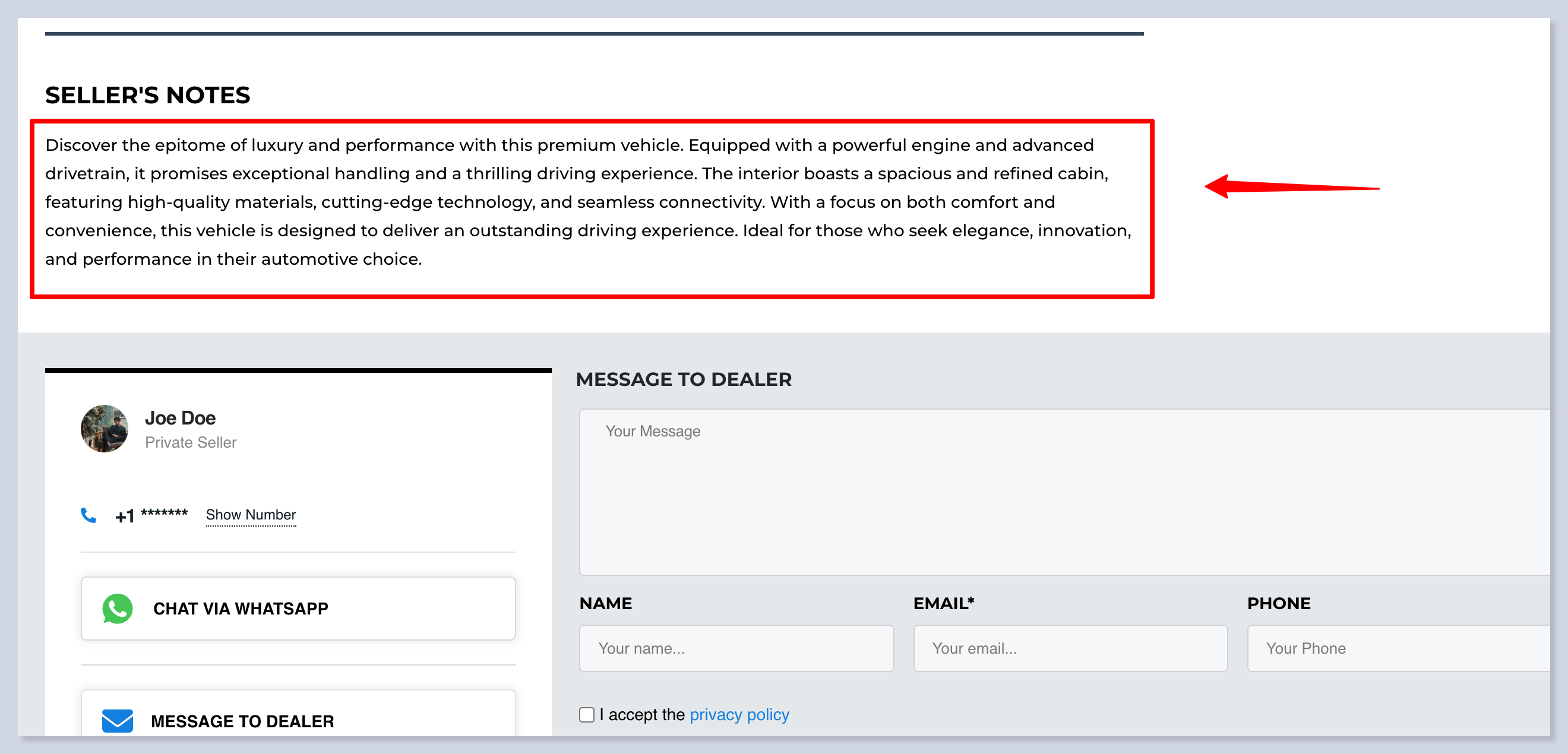
To this field, you can provide any text that will be published in the **Seller's Note** section of the **Single Listing Page**:
#### WYSIWYG Editor
The field is powered by [**WYSIWYG** ](#user-content-fn-1)[^1]Editor:
Here’s a breakdown of the tools available in the new Listing Manager editor, from left to right:
**Formatting & Structure:**
* **Undo / Redo** – Revert or reapply recent actions.
* **Paragraph Format** – Choose between paragraph, heading levels, and other text structures.
* **Font Family** – Select the font used in the text (e.g., system font).
**Text Styling:**
* **Bold (B)** – Makes selected text bold.
* **Italic (I)** – Italicizes the selected text.
* **Underline (U)** – Underlines the text.
* **Strikethrough (S)** – Adds a line through the selected text.
**Alignment:**
* **Align Left, Center, Right, Justify** – Controls how text is aligned within the editor.
**Lists & Indents:**
* **Bulleted List** – Adds an unordered (bullet) list.
* **Numbered List** – Adds an ordered (numbered) list.
* **Decrease/Increase Indent** – Adjust the indentation level of list items or text.
**Content:**
* **Insert/Edit Link** – Add or edit hyperlinks.
* **Insert Image** – Upload or select an image to embed.
* **Insert Video** – Embed a video via URL.
* **Insert Table** – Add a table to your content.
* **Insert Code Block** – Add preformatted code or syntax-highlighted blocks.
**Style Enhancements:**
* **Font Size / Text Style** – Adjust font size or apply additional text formatting.
* **Text Color** – Change the color of the selected text.
* **Highlight / Background Color** – Add a background color to highlight text.
* **Clear Formatting** – Remove all styles and formatting from selected text.
**Additional tools:**
* **Emoji / Special Characters** – Insert emojis or special characters into your content.
* **Horizontal Line** – Add a divider line.
* **Fullscreen Mode** – Expand the editor to fill the screen for easier writing.
* **Show/Hide Paragraph Marks (`↦ ¶`)** – Toggle visibility of paragraph breaks.
* **Show/Hide Formatting Marks (`¶ ↤`)** – Toggle all invisible formatting characters (spaces, tabs, returns).
## Mark as Featured
**Mark as Featured** - The listing will be highlighted as featured on the search results page and in other promotional places. You can adjust the Featured Listing preferences in Motors Plugin Settings.
If you toggle the **Mark as Featured** option, the **Badge Text** and **Badge Color** fields will appear under it. Here you can enter a text instead of the default ‘Special’, and customize the color.
## Mark as Sold
**Mark as Sold** - The Sold badge to the listing. You can adjust the Sold Listing preferences in Motors Plugin Settings.
## Right Sidebar Options
There, you will find fields like **Regular Price, Sale Price, Title, Condition, Mileage, Transmission,** and **Listing Creation Date**.
Use the **Save Draft, Delete,** or **Preview** buttons. Finalize changes with the **Next** in the bottom right or **Update** in the top.
With the help of the Search Bar at the top, you can quickly find settings across all seven tabs.
[^1]: What You See Is What You Get
---
# Agent Instructions
This documentation is published with GitBook. GitBook is the documentation platform designed so that both humans and AI agents can read, navigate, and reason over technical content effectively. Learn more at gitbook.com.
## Querying This Documentation
If you need additional information that is not directly available in this page, you can query the documentation by asking a question.
Perform an HTTP GET request on the following URL with the `ask` and `goal` query parameters:
```
GET https://docs.stylemixthemes.com/motors-theme-documentation/listing-management/listing-manager/summary.md?ask=&goal=
```
`ask` is the immediate question: it should be specific, self-contained, and written in natural language.
`goal` is what the user is ultimately trying to achieve, the reason they need the answer. Sharing it helps GitBook give you a better, more relevant answer. A goal is most helpful when it describes the outcome the user wants rather than restating the question. For example, with `ask=how do I create an API token`, a goal like `automate deployments from our CI pipeline` lets GitBook tailor the answer to that use case.
The response will contain a direct answer to the question and relevant excerpts and sources from the documentation.
Use this mechanism when the answer is not explicitly present in the current page, you need clarification or additional context, or you want to retrieve related documentation sections.