> For the complete documentation index, see [llms.txt](https://docs.stylemixthemes.com/llms.txt). Markdown versions of documentation pages are available by appending `.md` to page URLs; this page is available as [Markdown](https://docs.stylemixthemes.com/motors-theme-documentation/search-filter/search-filters.md).
# Search Filters
Under the **Search Filters** tab, you can modify parameters and behaviors related to search and filter widgets.
{% hint style="info" %}
The settings of the **Search Filters** tab **vary between demos.**
{% endhint %}
You can reach the tab by following **Motors Plugin > Search Filter**s. Here is an overview of the **t**ab:
## Default Sorting by
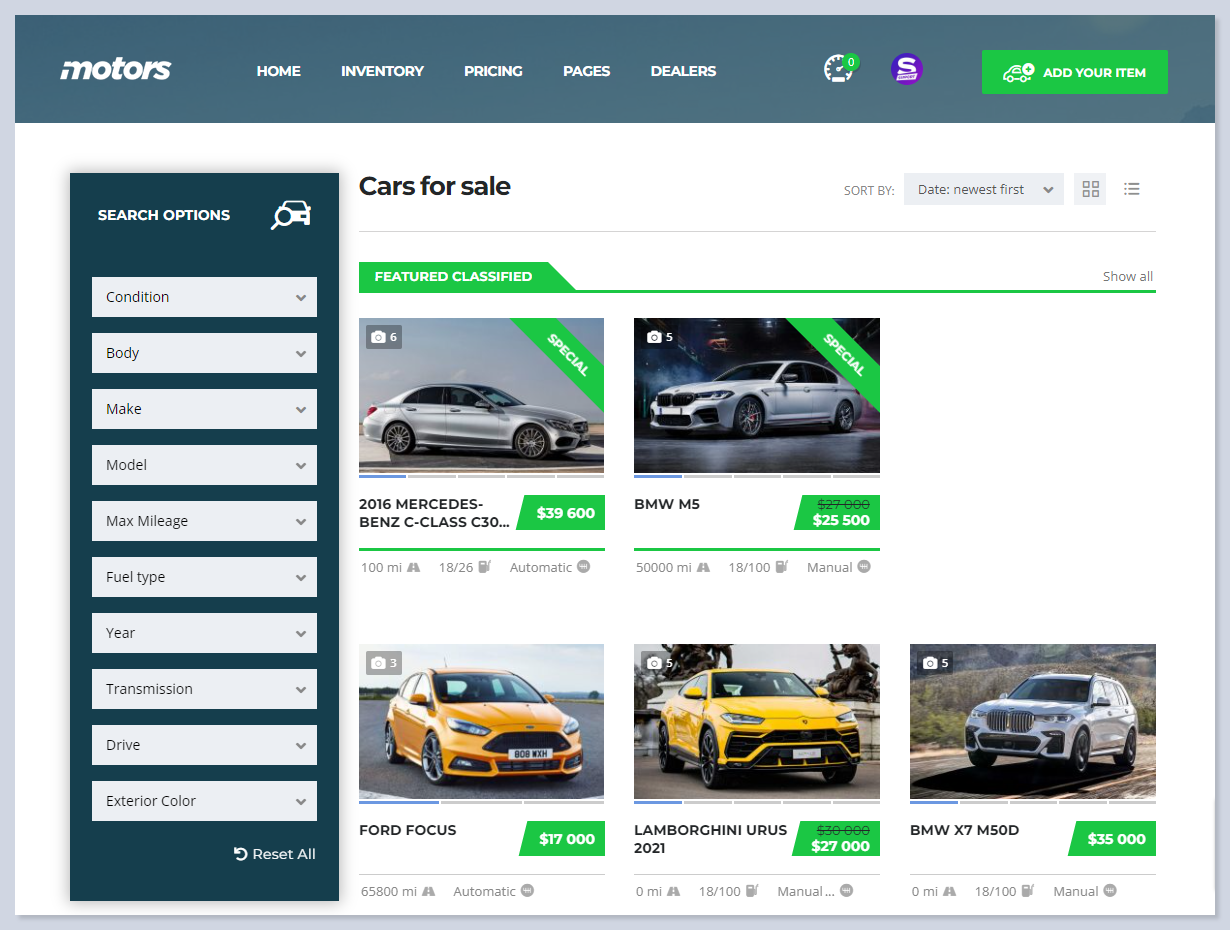
The **Default Sorting by** setting allows you to choose the initial sorting method for your listings. Here are the available options:
Available Default Sort Options
{% hint style="info" %}
Sorting options may vary based on the [listing categories](/motors-theme-documentation/search-filter/inventory-listing-categories.md) and the [imported demo.](/motors-theme-documentation/getting-started/how-to-import-demo-content.md)
{% endhint %}
## Filter by Listing Categories
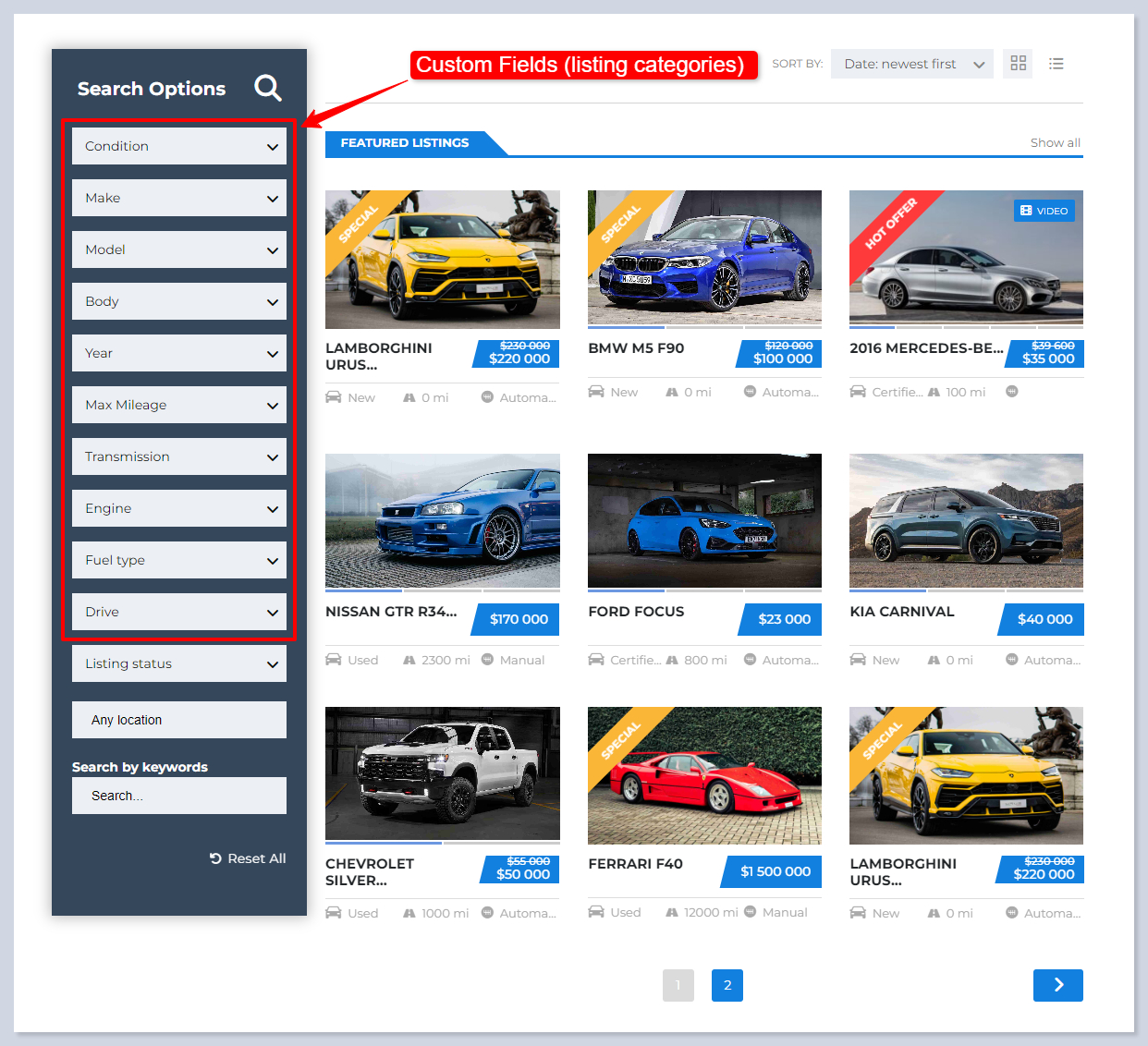
This setting allows you to select which categories (custom fields) users can filter listings by. You can enable filters based on attributes allowing users to narrow down search results based on their preferences.
{% hint style="info" %}
Options in this setting vary based on the **Custom Fileds (listing categories)** on your website. You can [**manage**](/motors-theme-documentation/search-filter/inventory-listing-categories.md) them by following **WP Dashboard > Motors Plugin > Custom Fields.**
{% endhint %}
## Use WordPress Search for Listings
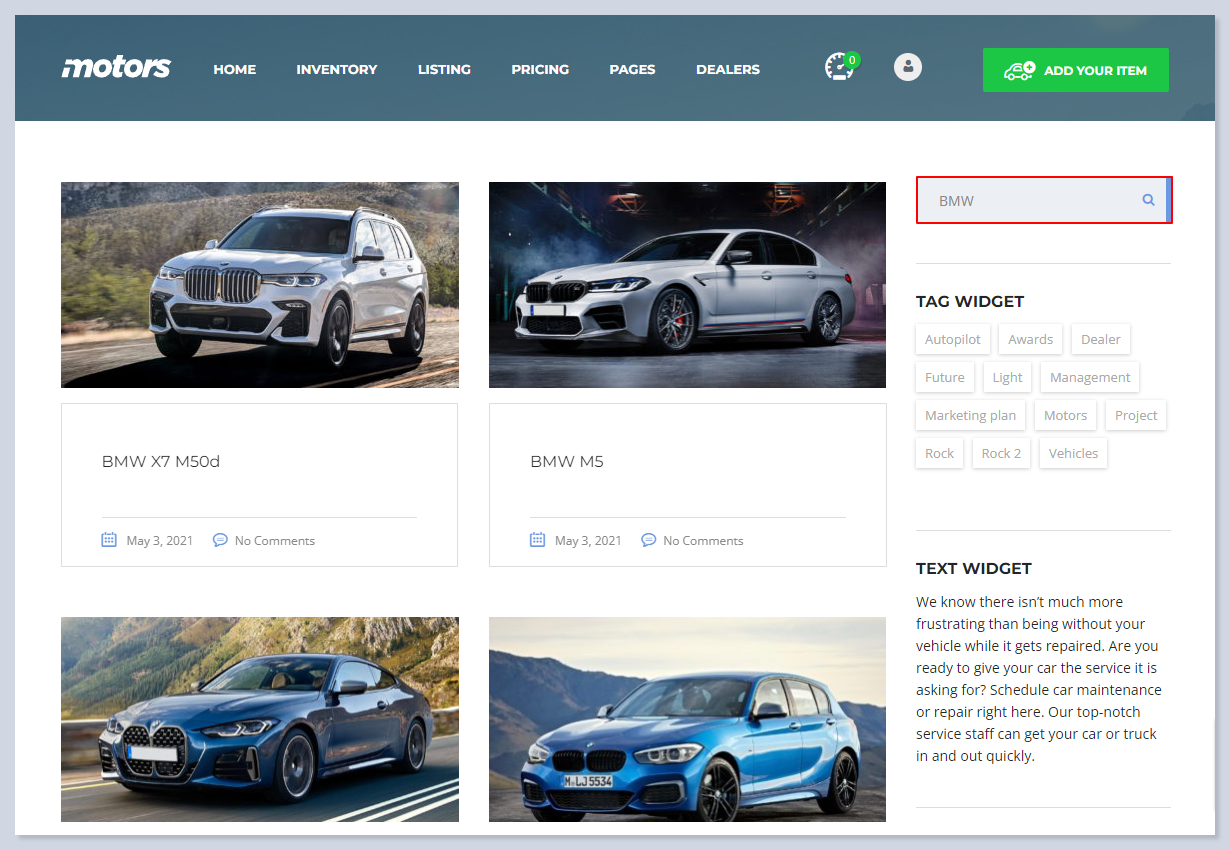
When enabled, this setting binds the **WordPress default search** option to the [**Search Results** (**Inventory) page**](/motors-theme-documentation/motors-plugin-settings/pages.md#listings-page-inventory)**.** So if you search something via **WordPress default search** the page will be redirected to the Inventory page
{% tabs %}
{% tab title="Setting OFF" %}
The searched elements will be displayed on the WordPress default Search results page:
{% endtab %}
{% tab title="Setting ON" %}
The Inventory page will open on the search
{% endtab %}
{% endtabs %}
## Search by Keywords
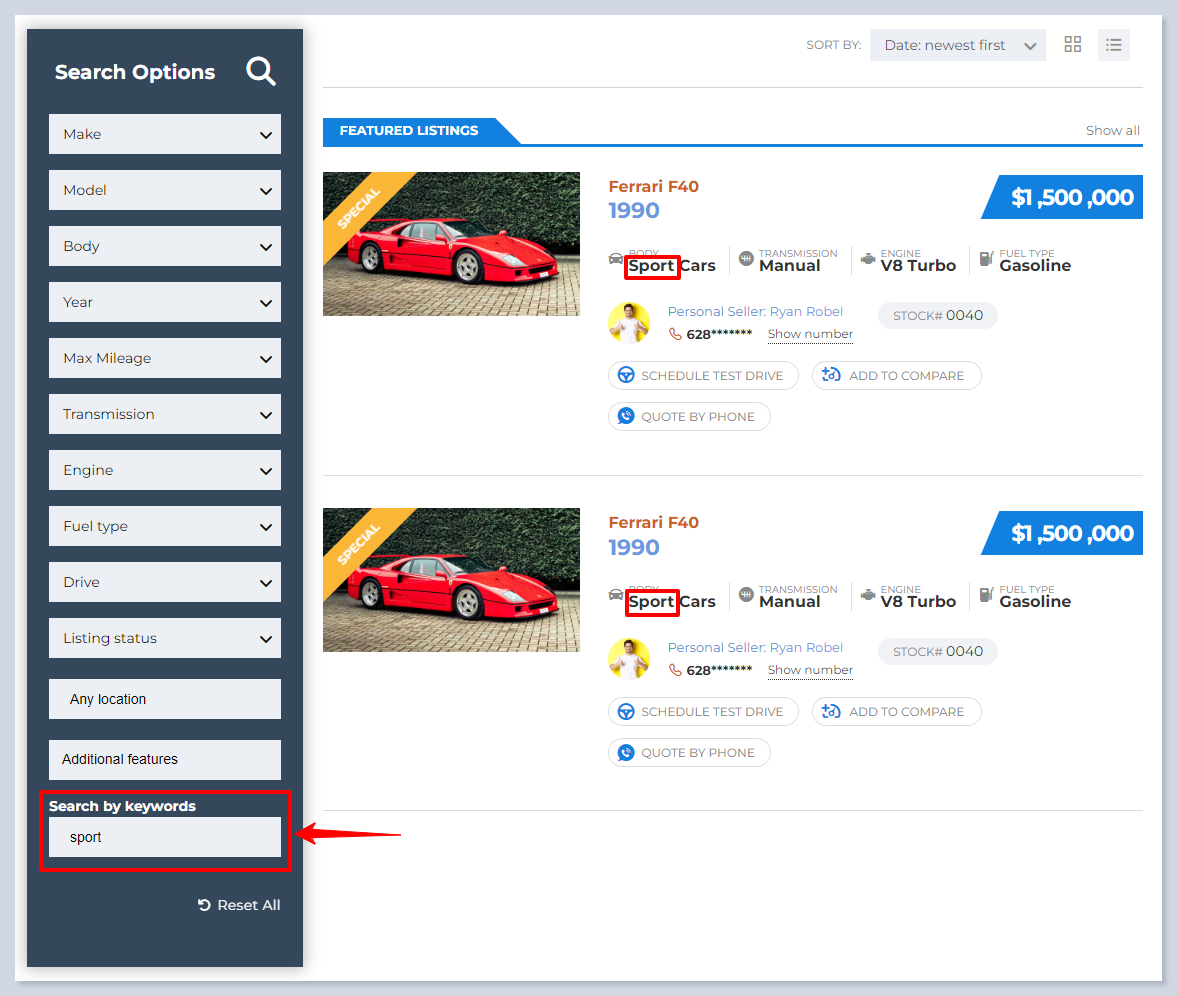
This option enables a keyword search functionality, allowing users to search for listings using specific words or phrases. This provides a more flexible search experience as users can input any relevant term to find what they are looking for.
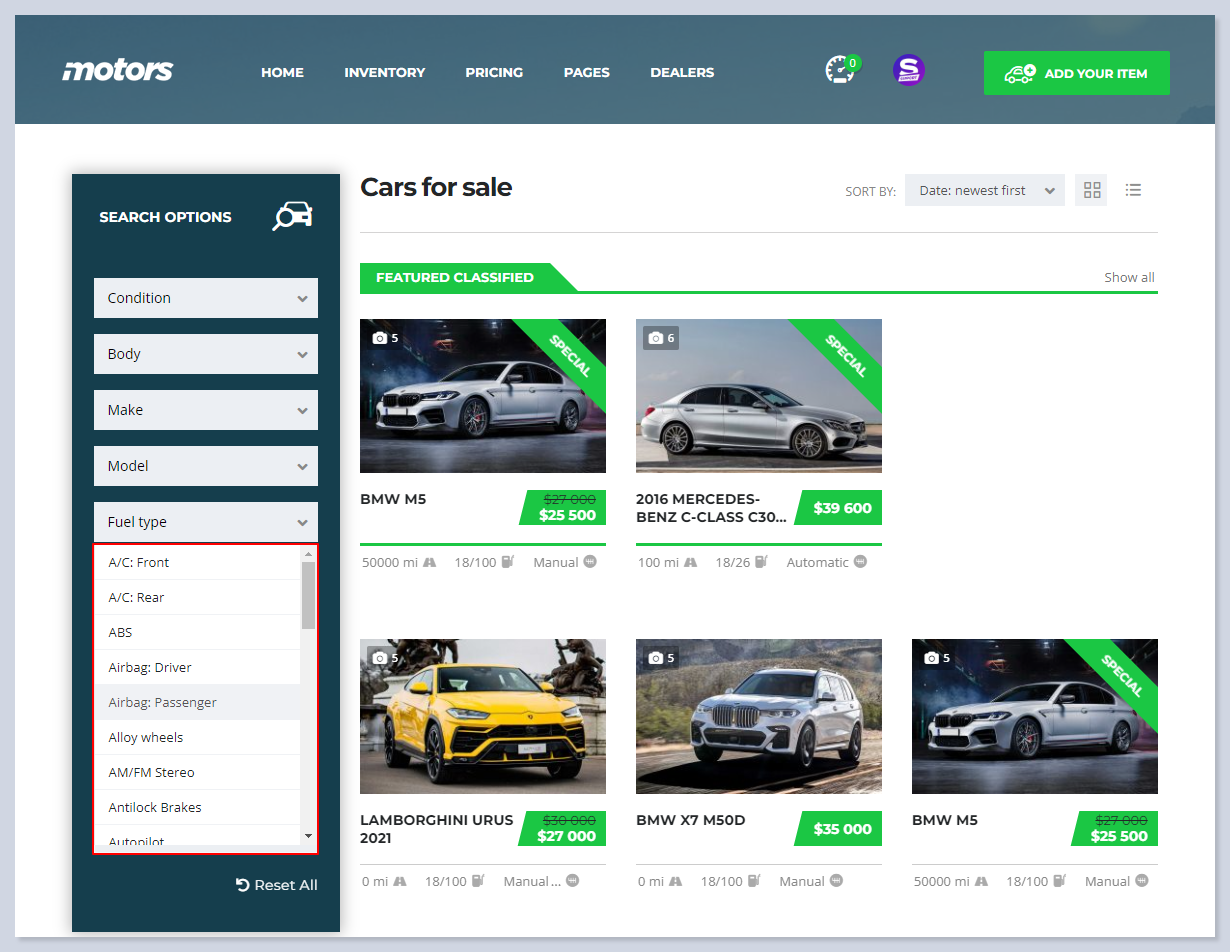
## Filter by Features
Enable this option to display the sorting by Additional listing features.
{% tabs %}
{% tab title="Setting OFF" %}
{% endtab %}
{% tab title="Setting ON" %}
{% endtab %}
{% endtabs %}
## Filter by Location
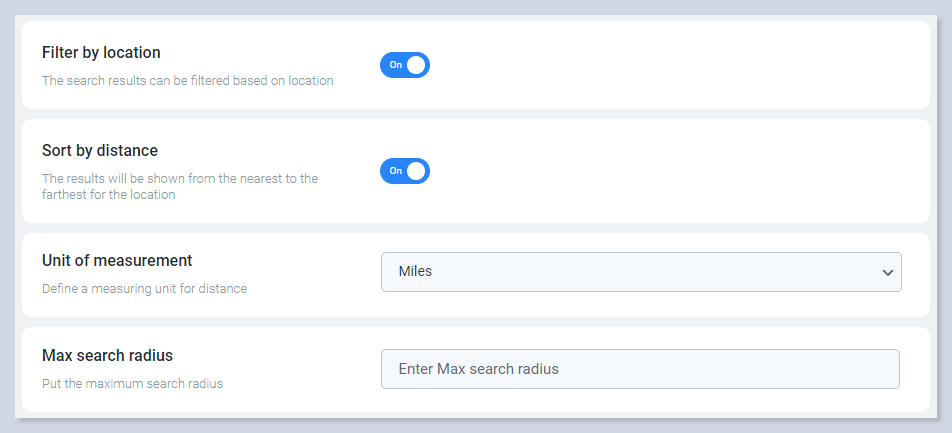
This setting allows users to filter listings by location. This is especially useful for users looking for vehicles within a specific geographic area.
* **Sort by Distance** - the search results will be sorted based on proximity, showing vehicles closest to the user’s location first. This feature is particularly useful for users looking to find vehicles near them.
* **Unit of Measurement** - this option allows you to define the unit of measurement for distances displayed on the search results page. You can select from available units such as **miles** or **kilometers**.
* **Max Search Radius** - this setting allows you to define the maximum radius within which users can search for listings based on location. Users can specify the radius of their search to refine the results.
{% hint style="warning" %} **IMPORTANT**
[**Google Maps API**](/motors-theme-documentation/motors-plugin-settings/google-services/google-maps.md) setting should be configured to make the **Filter by Location** feature work.
{% endhint %}
---
# Agent Instructions
This documentation is published with GitBook. GitBook is the documentation platform designed so that both humans and AI agents can read, navigate, and reason over technical content effectively. Learn more at gitbook.com.
## Querying This Documentation
If you need additional information that is not directly available in this page, you can query the documentation by asking a question.
Perform an HTTP GET request on the following URL with the `ask` and `goal` query parameters:
```
GET https://docs.stylemixthemes.com/motors-theme-documentation/search-filter/search-filters.md?ask=&goal=
```
`ask` is the immediate question: it should be specific, self-contained, and written in natural language.
`goal` is what the user is ultimately trying to achieve, the reason they need the answer. Sharing it helps GitBook give you a better, more relevant answer. A goal is most helpful when it describes the outcome the user wants rather than restating the question. For example, with `ask=how do I create an API token`, a goal like `automate deployments from our CI pipeline` lets GitBook tailor the answer to that use case.
The response will contain a direct answer to the question and relevant excerpts and sources from the documentation.
Use this mechanism when the answer is not explicitly present in the current page, you need clarification or additional context, or you want to retrieve related documentation sections.