Form Builder
The Forms Builder addon lets you modify all forms used in your car dealership website. Its drag-and-drop builder and wide range of elements enable you to edit the forms without limits.
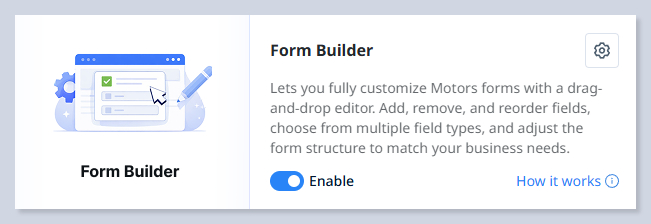
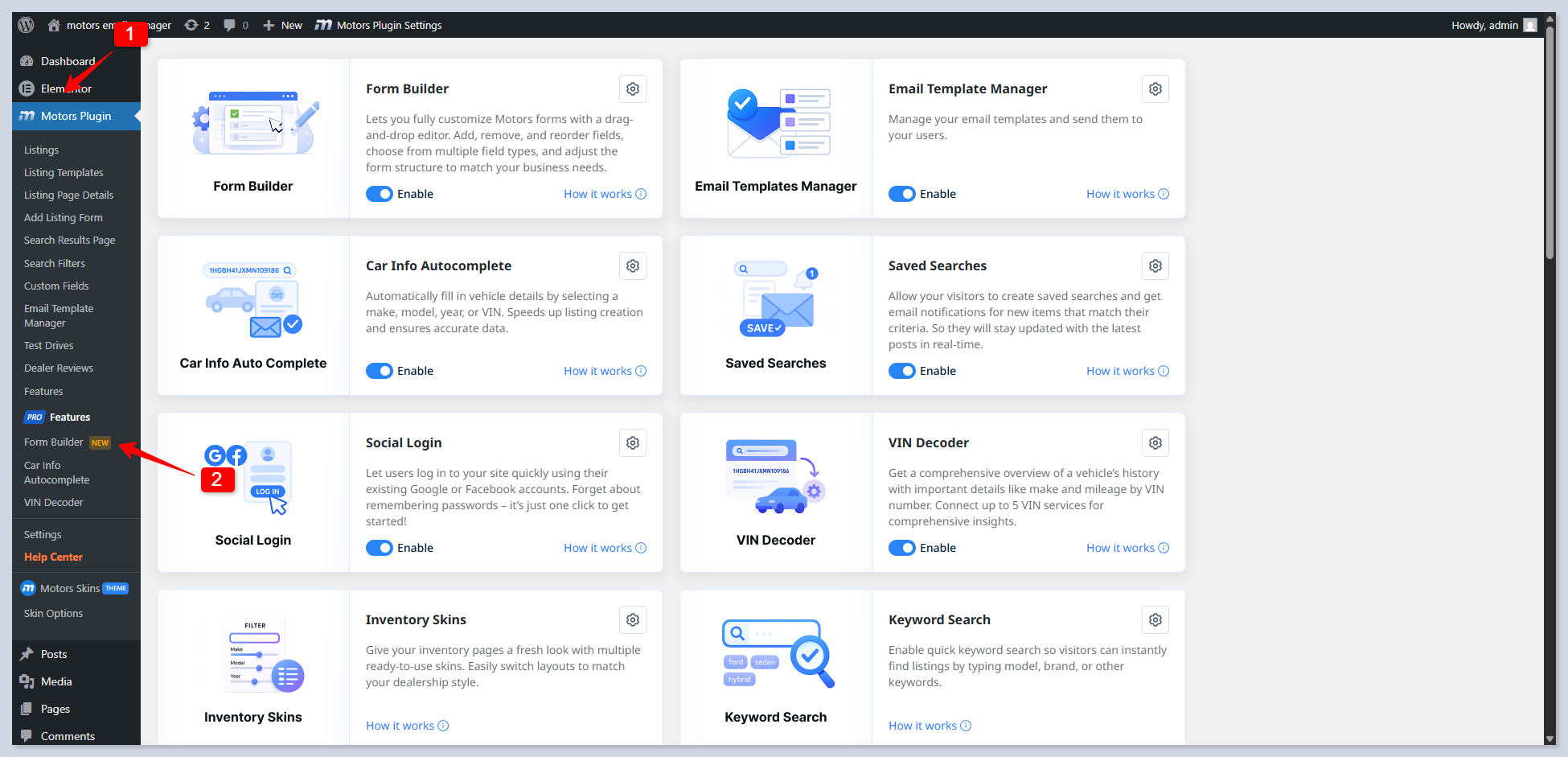
To activate the addon, follow WP Dashboard > Motors > Pro Features > Form Builder:

Click on the gear icon, or follow the WP Dashboard > Motors > Form Builder to access it:

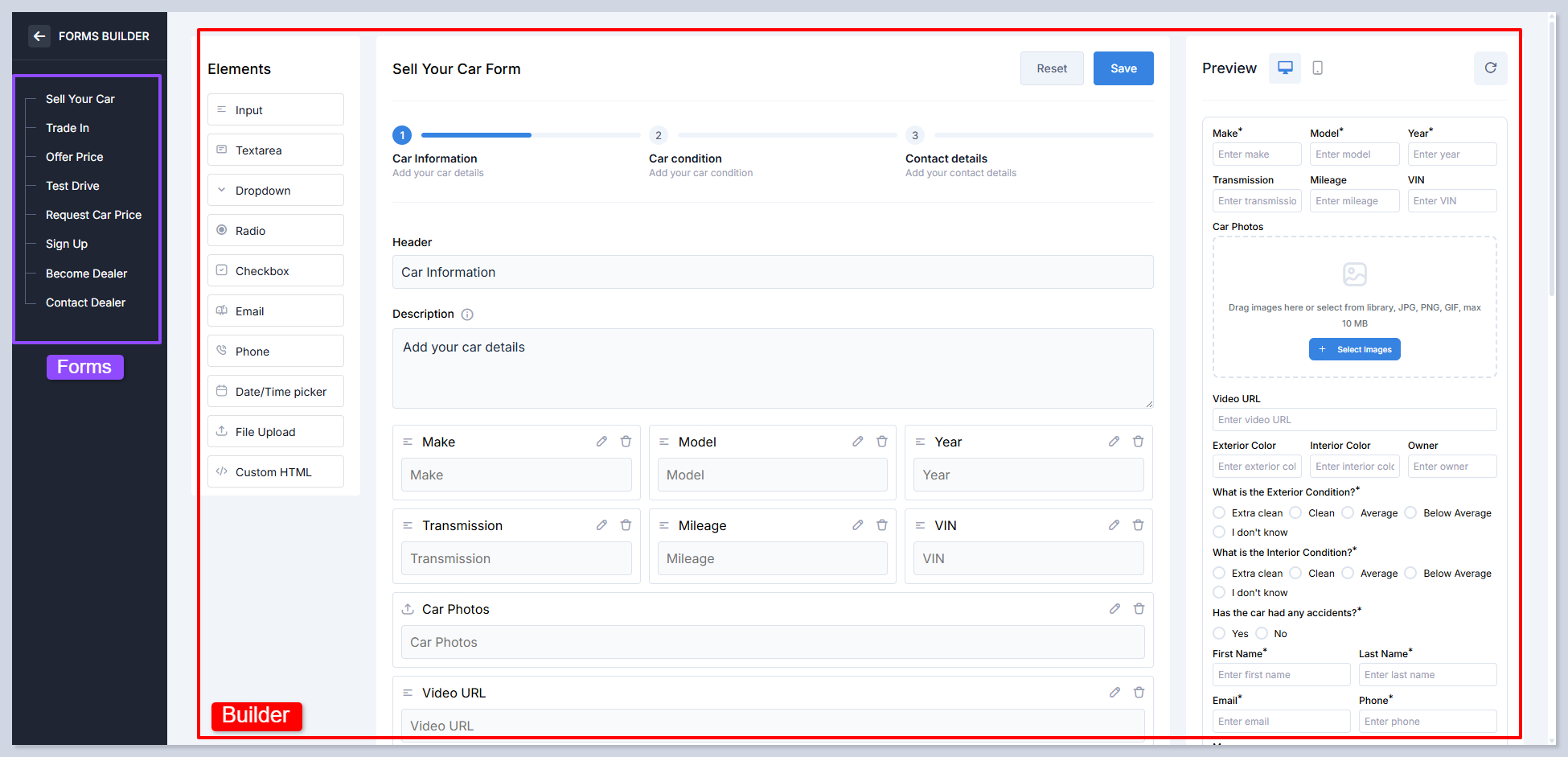
We can divide the Forms Builder into two sections:

Forms - the list of all available forms used in your car dealership website.
Builder - this is the place where you can use dragging and dropping to add elements. On the right side of the builder, there is a preview section that lets you check the form before it's published, both for mobile and desktop devices.
Once there is a response to the forms, admin/dealer will be notified automatically. That's why make sure that you have set up SMTP settings on your website accordingly. Outgoing email templates can be modified via Email Template Manager addon.
Builder
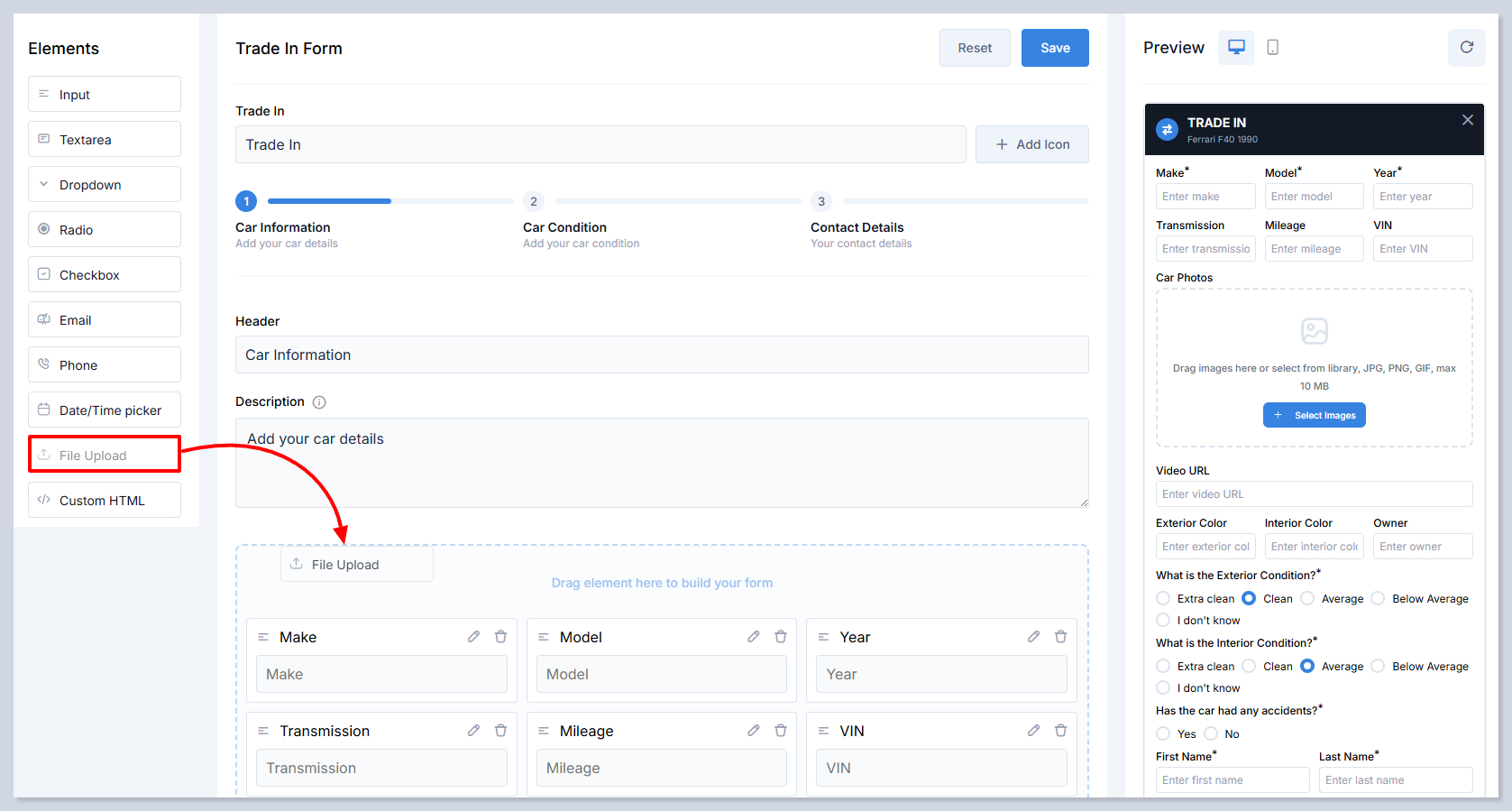
The builder uses a drag and drop workflow. You can add fields, rearrange elements, configure input types, and preview the form in real time without coding.
The builder appearance differs across forms, with each form having unique fields or sections. However, you can use all 10 available elements in any form. Builder does not let you delete mandatory fields in the form.

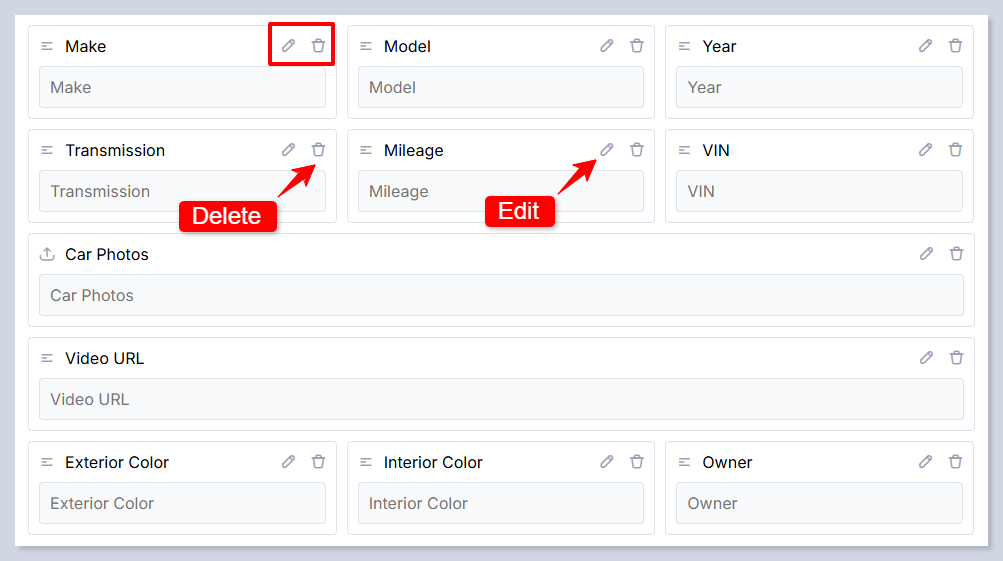
There are special edit and delete buttons in all elements in the form:

Let's see the preferences of all elements one by one.
Input
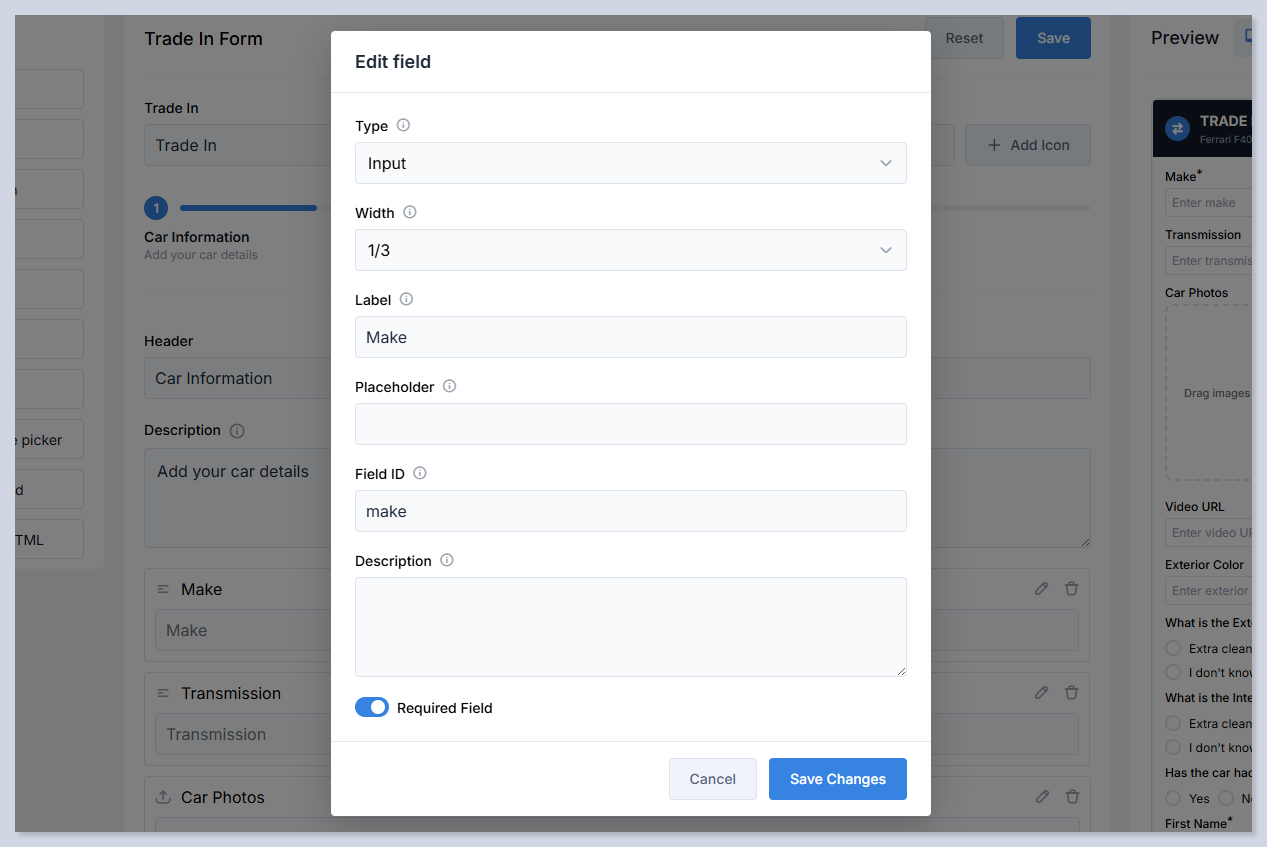
The Input element creates a single line text field used to collect short text information from users. It is commonly used for car make, model, year, VIN, names, and other brief entries. This element supports validation, required status, and layout control.

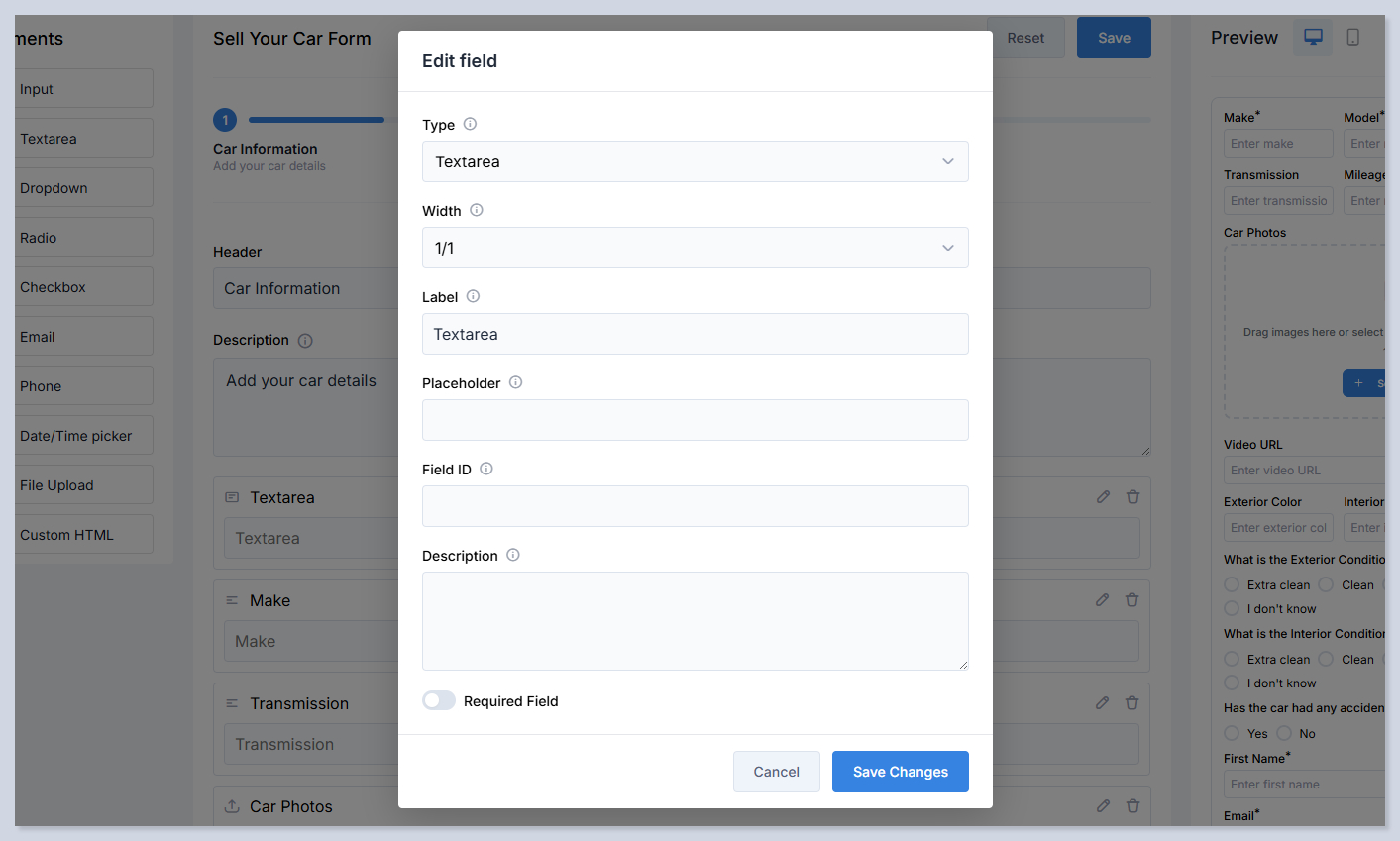
Type - Defines the field (element) type.
Width - Controls how much horizontal space the field occupies in the row. For example, 1/3 means the field takes one third of the row width.
Label - The visible name of the field shown above the input on the form. It tells users what information is required.
Placeholder - The helper text displayed inside the input field before the user types. It provides an example or hint about what to enter.
Field ID - A unique field identifier used as a Smart Tag in the Email Template Manager to insert the user’s submitted value into emails.
Description - Additional explanatory text displayed with the field. It can be used to give instructions or clarify what the user should enter.
Required Field - When enabled, the field must be completed before the form can be submitted. If left empty, submission will be blocked.

Textarea
The Textarea element creates a multi line text field used to collect longer written input from users. It is ideal for descriptions, comments, vehicle condition notes, or additional details that require more space than a single line input.

Type - Defines the field (element) type.
Width - Controls how much horizontal space the field occupies in the row. For example, 1/3 means the field takes one third of the row width.
Label - The visible name of the field shown above the input on the form. It tells users what information is required.
Placeholder - The helper text displayed inside the input field before the user types. It provides an example or hint about what to enter.
Field ID - A unique field identifier used as a Smart Tag in the Email Template Manager to insert the user’s submitted value into emails.
Description - Additional explanatory text displayed with the field. It can be used to give instructions or clarify what the user should enter.
Required Field - When enabled, the field must be completed before the form can be submitted. If left empty, submission will be blocked.

Dropdown
The Dropdown element creates a selectable list where users choose one option from predefined values. It is useful for standardized data such as colors, transmission types, fuel types, or other categorized vehicle attributes. Dropdowns help keep submissions consistent and reduce input errors.

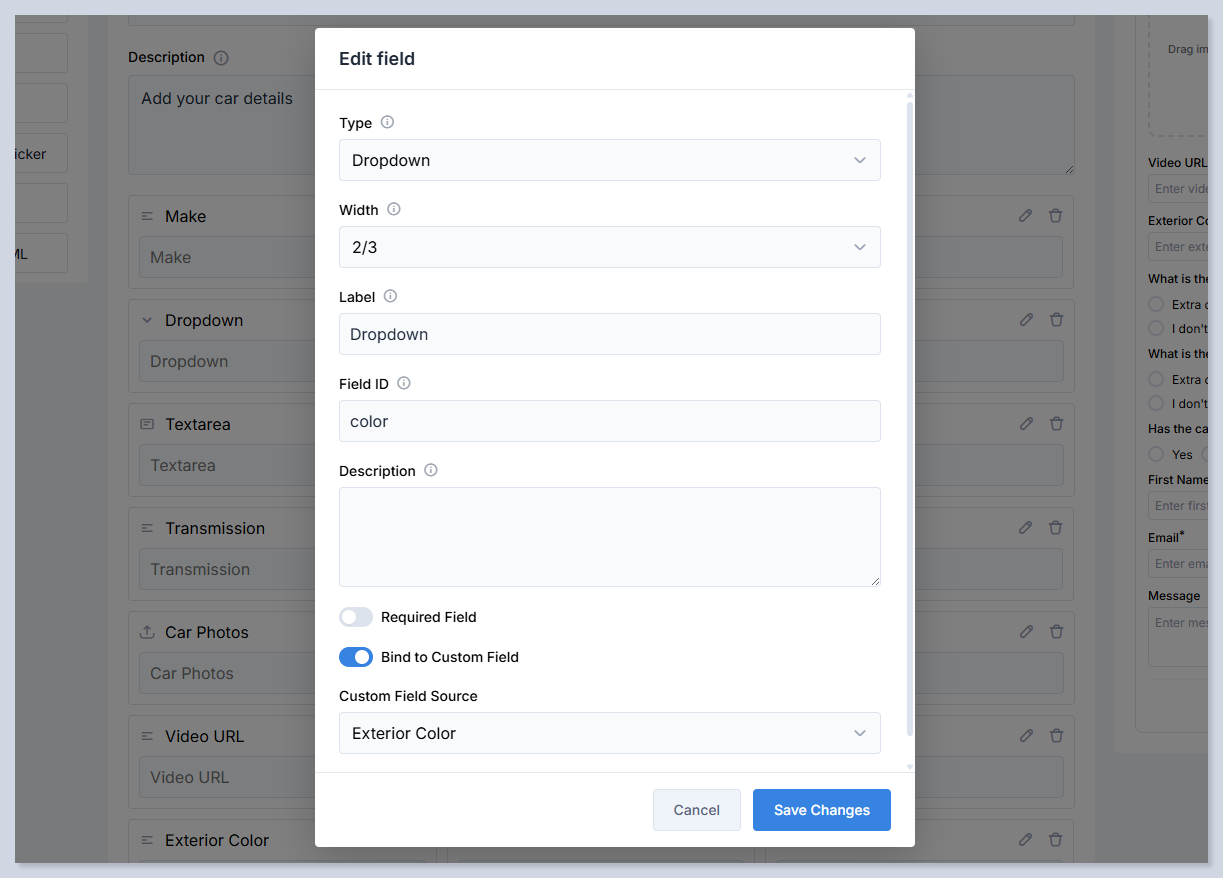
Type - Defines the field (element) type.
Width - Controls how much horizontal space the field occupies in the row. For example, 1/3 means the field takes one third of the row width.
Label - The visible name of the field shown above the input on the form. It tells users what information is required.
Field ID - A unique field identifier used as a Smart Tag in the Email Template Manager to insert the user’s submitted value into emails.
Description - Additional explanatory text displayed with the field. It can be used to give instructions or clarify what the user should enter.
Required Field - When enabled, the field must be completed before the form can be submitted. If left empty, submission will be blocked.
Bind to Custom Field - Connects the dropdown to an existing system custom field. This allows the form to reuse predefined values stored in the platform.
Custom Field Source - Defines which custom field is linked when binding is enabled. The dropdown options will be pulled from this source automatically.
If the Bind to Custom Field setting is disabled, you have to add the dropdown field options manually.

Radio
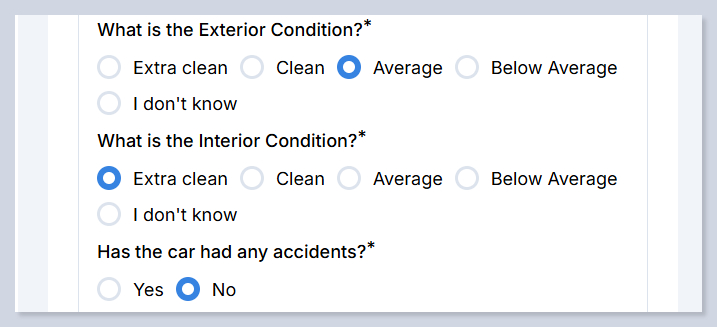
The Radio element creates a group of selectable options where the user can choose only one answer. It is ideal for condition ratings, yes or no questions, or fixed decision based inputs. All options are visible at once, making selection fast and clear.

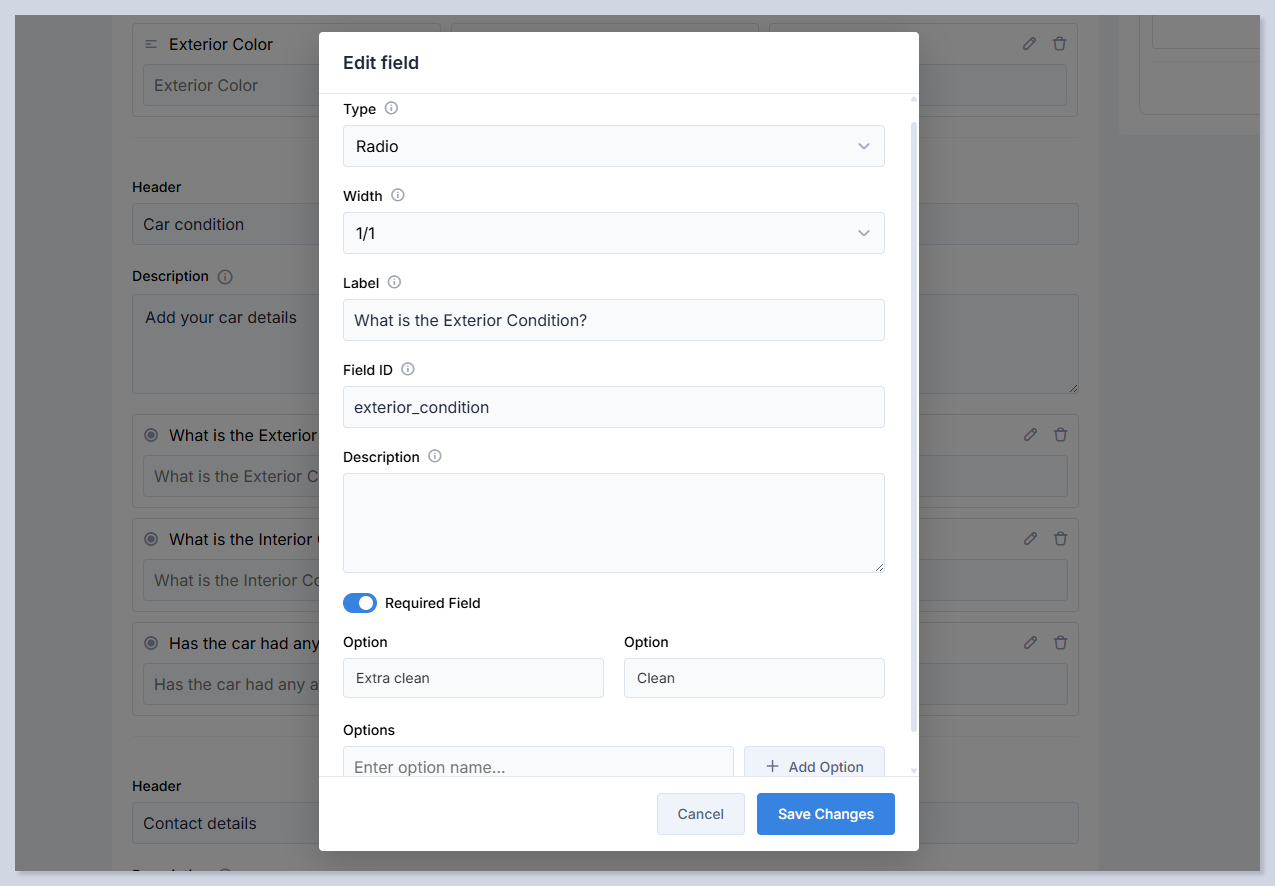
Type - Defines the field (element) type.
Width - Controls how much horizontal space the field occupies in the row. For example, 1/3 means the field takes one third of the row width.
Label - The visible name of the field shown above the input on the form. It tells users what information is required.
Field ID - A unique field identifier used as a Smart Tag in the Email Template Manager to insert the user’s submitted value into emails.
Description - Additional explanatory text displayed with the field. It can be used to give instructions or clarify what the user should enter.
Required Field - When enabled, the field must be completed before the form can be submitted. If left empty, submission will be blocked.
Options - Selectable value in the radio group. Each option represents one possible answer. Clicking Add Option inserts additional radio choices.

Checkbox
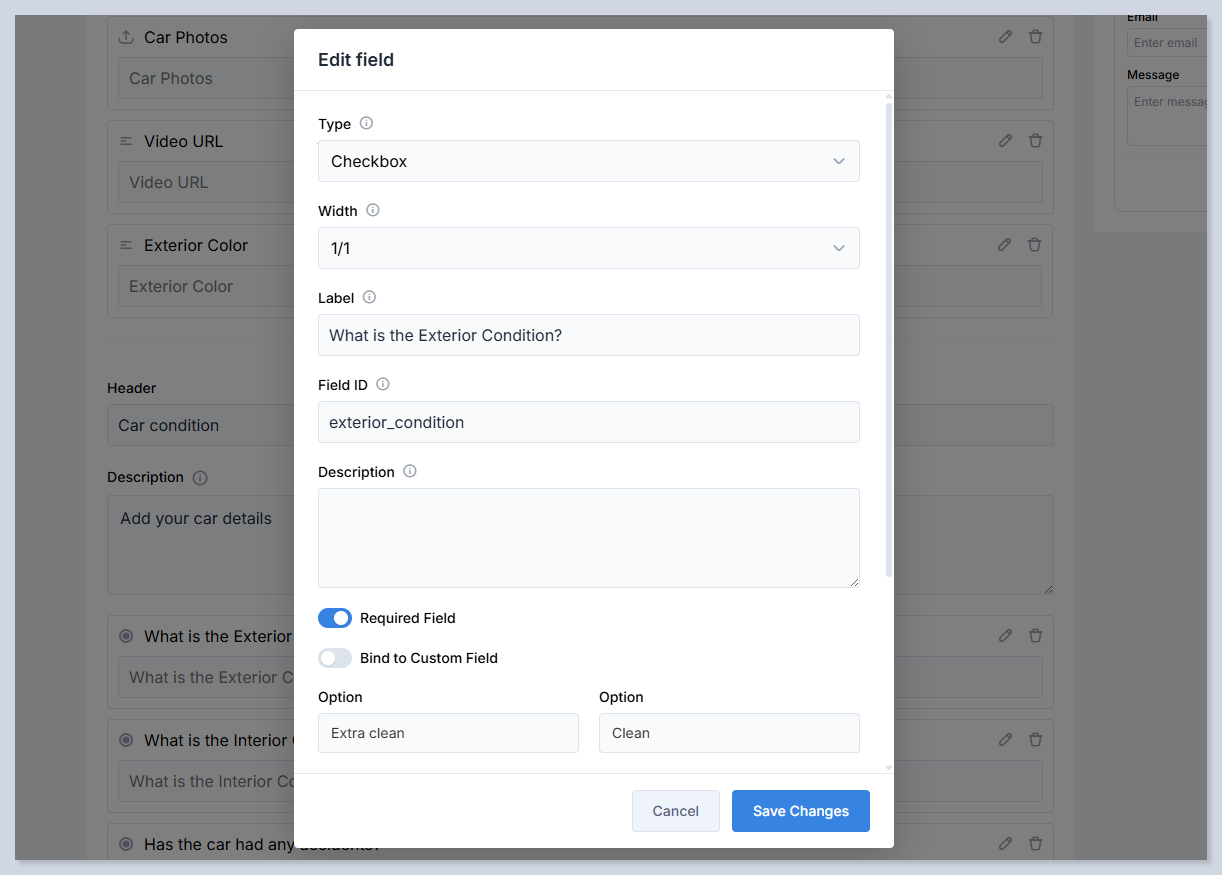
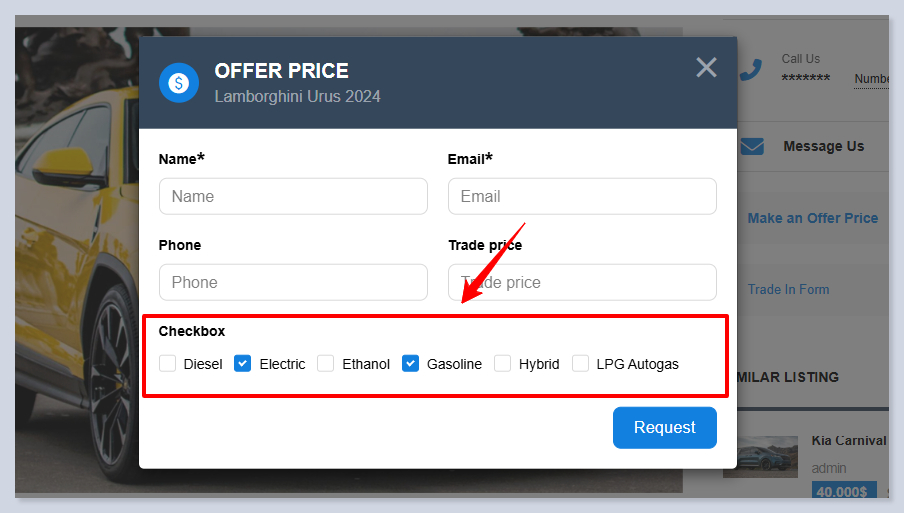
The Checkbox element creates a group of selectable options where users can choose one or multiple answers. It is used when more than one option may apply, such as features, equipment, or condition attributes. Checkboxes allow flexible multi selection input.

Type - Defines the field (element) type.
Width - Controls how much horizontal space the field occupies in the row. For example, 1/3 means the field takes one third of the row width.
Label - The visible name of the field shown above the input on the form. It tells users what information is required.
Field ID - A unique field identifier used as a Smart Tag in the Email Template Manager to insert the user’s submitted value into emails.
Description - Additional explanatory text displayed with the field. It can be used to give instructions or clarify what the user should enter.
Required Field - When enabled, the field must be completed before the form can be submitted. If left empty, submission will be blocked.
Bind to Custom Field - Connects the checkbox to an existing system custom field. This allows the form to reuse predefined values stored in the platform.
Custom Field Source - Defines which custom field is linked when binding is enabled. The checkbox options will be pulled from this source automatically.
If the Bind to Custom Field setting is disabled, you have to add the checkbox field options manually.

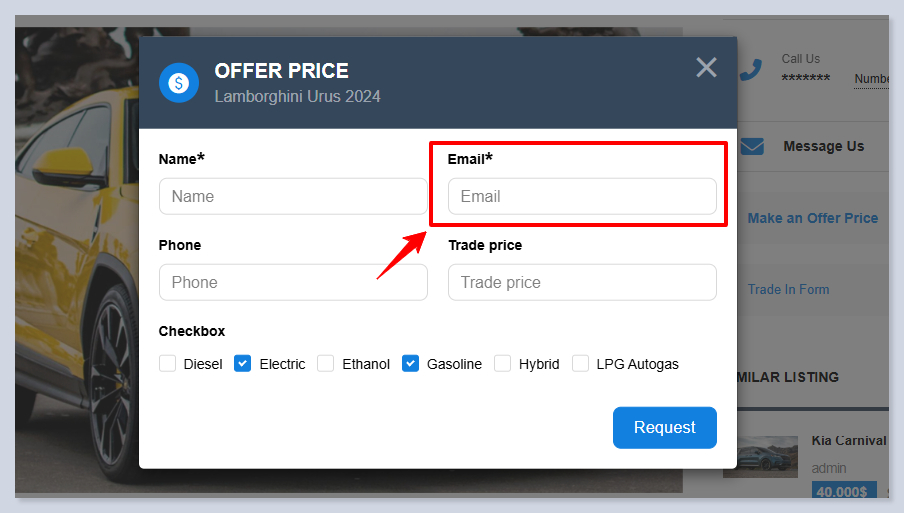
Email
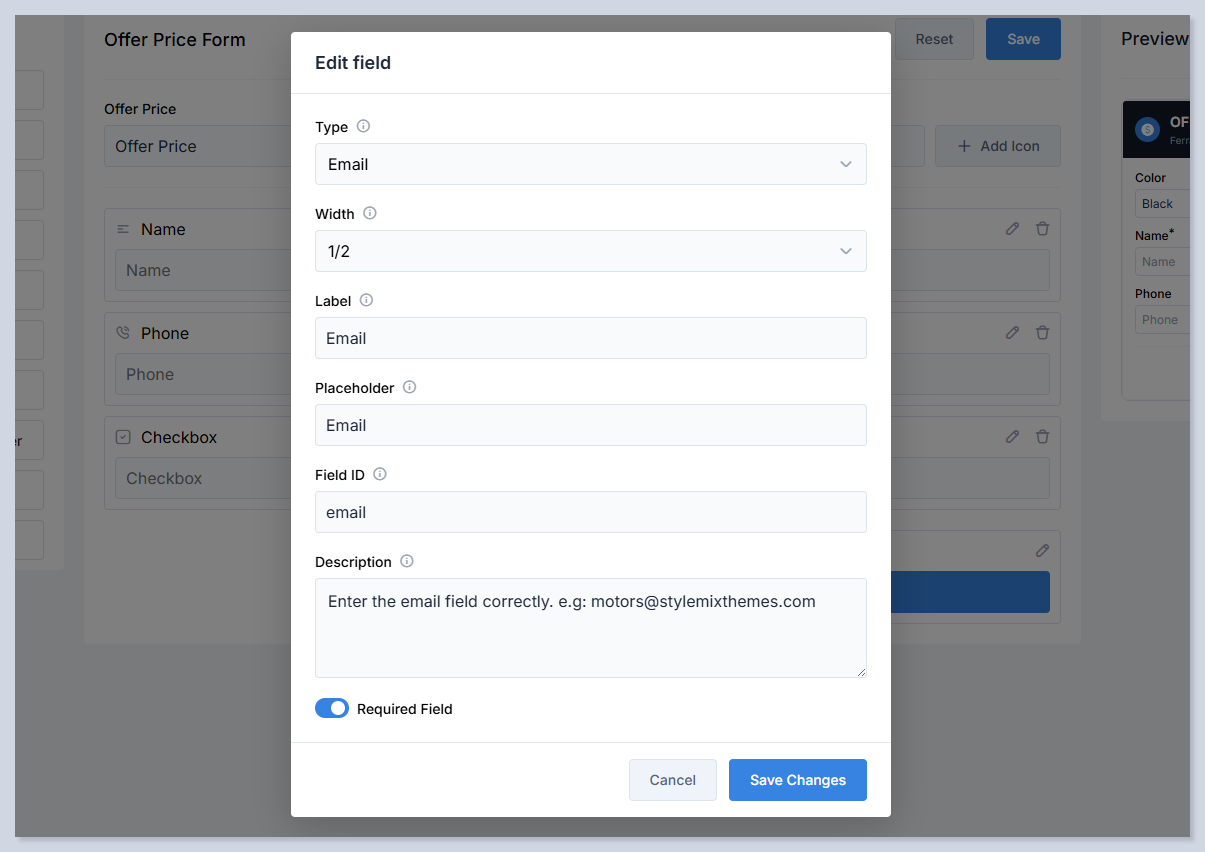
The Email element creates a field specifically designed to collect email addresses. It includes built in validation to ensure the entered value follows a correct email format. This field is essential for customer communication and follow up.

Type - Defines the field (element) type.
Width - Controls how much horizontal space the field occupies in the row. For example, 1/3 means the field takes one third of the row width.
Label - The visible name of the field shown above the input on the form. It tells users what information is required.
Placeholder - The helper text displayed inside the input field before the user types. It provides an example or hint about what to enter.
Field ID - A unique field identifier used as a Smart Tag in the Email Template Manager to insert the user’s submitted value into emails.
Description - Additional explanatory text displayed with the field. It can be used to give instructions or clarify what the user should enter.
Required Field - When enabled, the field must be completed before the form can be submitted. If left empty, submission will be blocked.

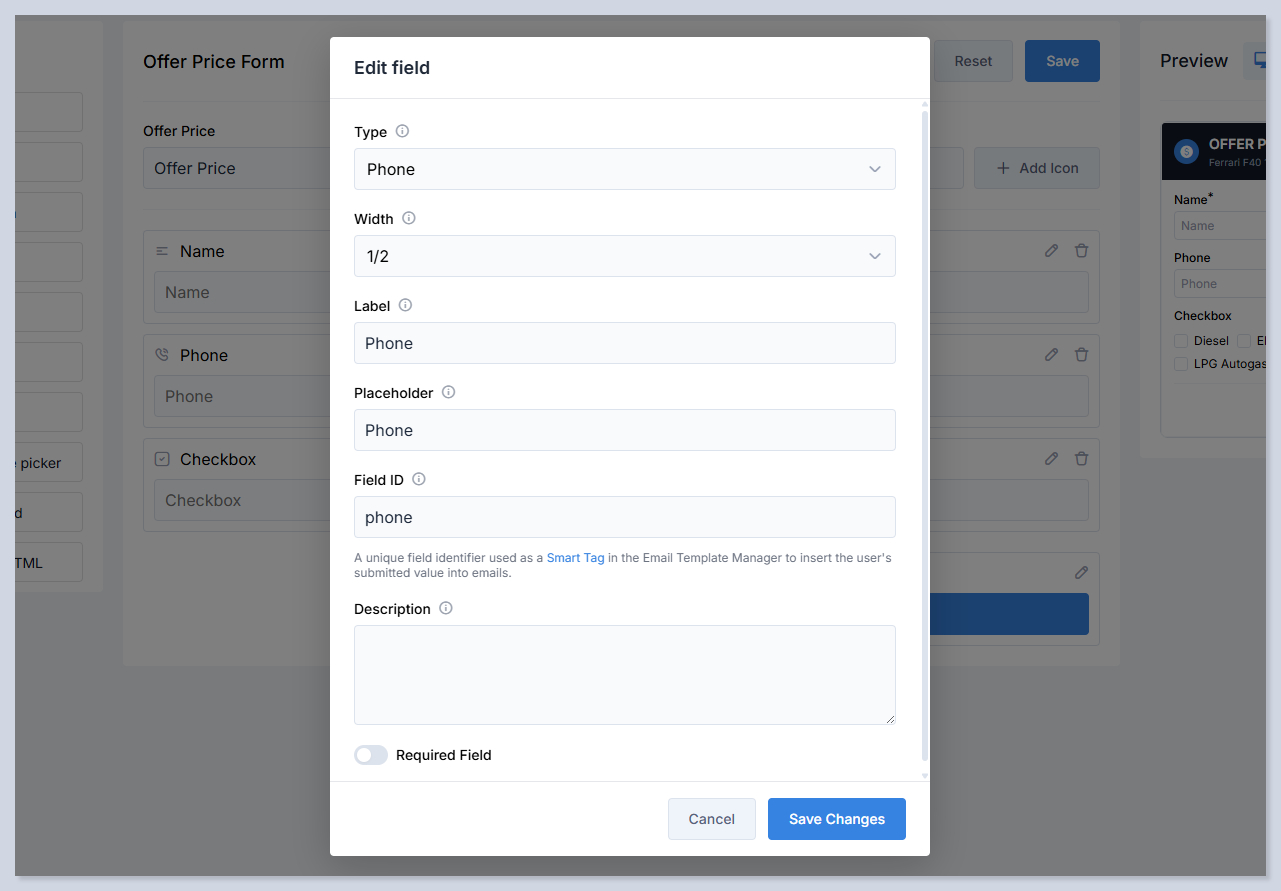
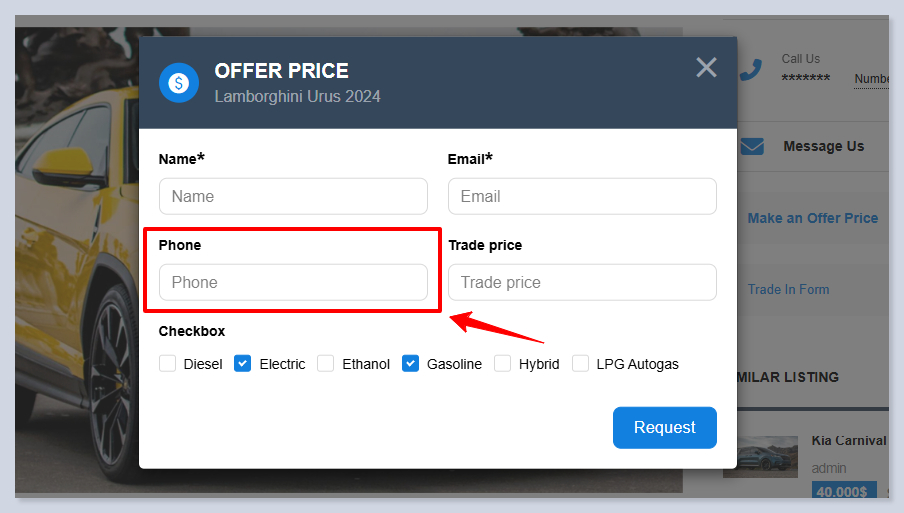
Phone
The Phone element creates a field for collecting contact phone numbers. It is optimized for numeric input and helps ensure customers provide reachable contact details for follow up communication.

Type - Defines the field (element) type.
Width - Controls how much horizontal space the field occupies in the row. For example, 1/3 means the field takes one third of the row width.
Label - The visible name of the field shown above the input on the form. It tells users what information is required.
Placeholder - The helper text displayed inside the input field before the user types. It provides an example or hint about what to enter.
Field ID - A unique field identifier used as a Smart Tag in the Email Template Manager to insert the user’s submitted value into emails.
Description - Additional explanatory text displayed with the field. It can be used to give instructions or clarify what the user should enter.
Required Field - When enabled, the field must be completed before the form can be submitted. If left empty, submission will be blocked.

Date/Time Picker
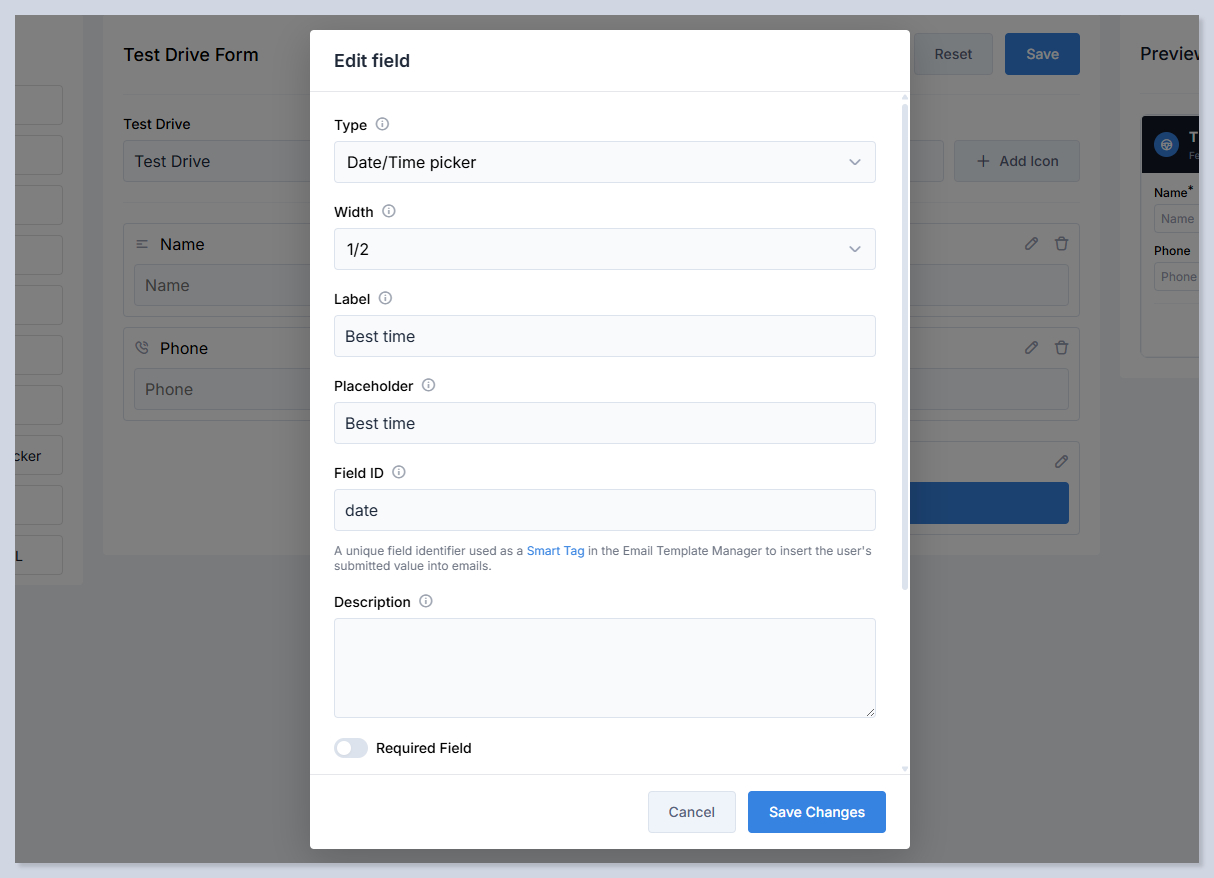
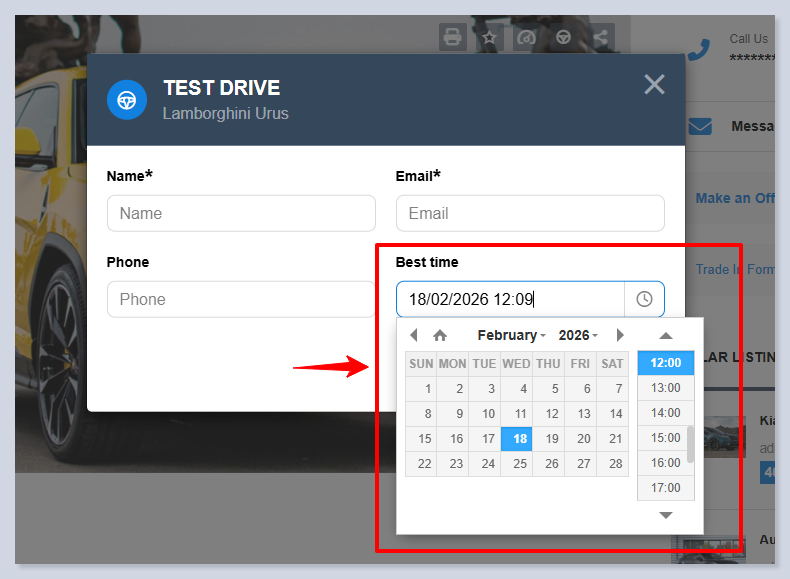
The Date/Time Picker element allows users to select a specific date and time using an interactive calendar interface. It is commonly used for scheduling appointments such as test drives, meetings, or service visits. This element reduces input errors compared to manual typing.

Type - Defines the field (element) type.
Width - Controls how much horizontal space the field occupies in the row. For example, 1/2 means the field takes half of the row width.
Label - The visible name displayed above the field. It explains what date or time the user should choose.
Placeholder - The helper text shown inside the field before selection. It suggests the purpose of the input.
Field ID - The unique internal identifier for the field. It is used by the system to process and store submitted values and can be referenced as a Smart Tag in email templates.
Description - Additional explanatory text displayed with the picker. It can provide scheduling instructions.
Required Field - When enabled, a date and time must be selected before the form can be submitted.

File Upload
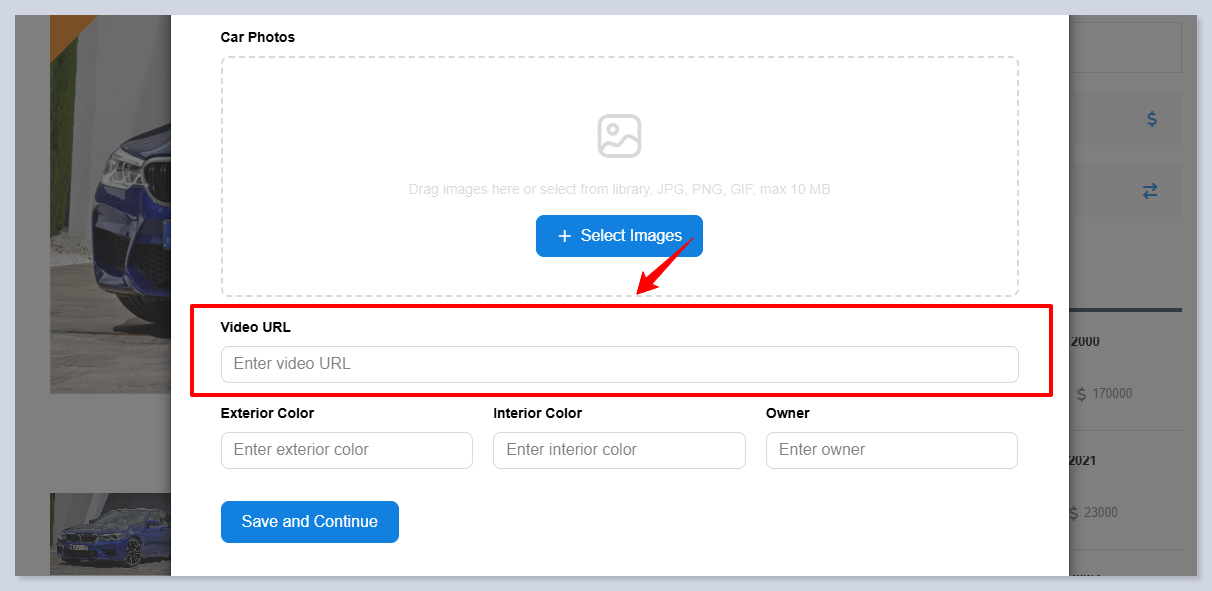
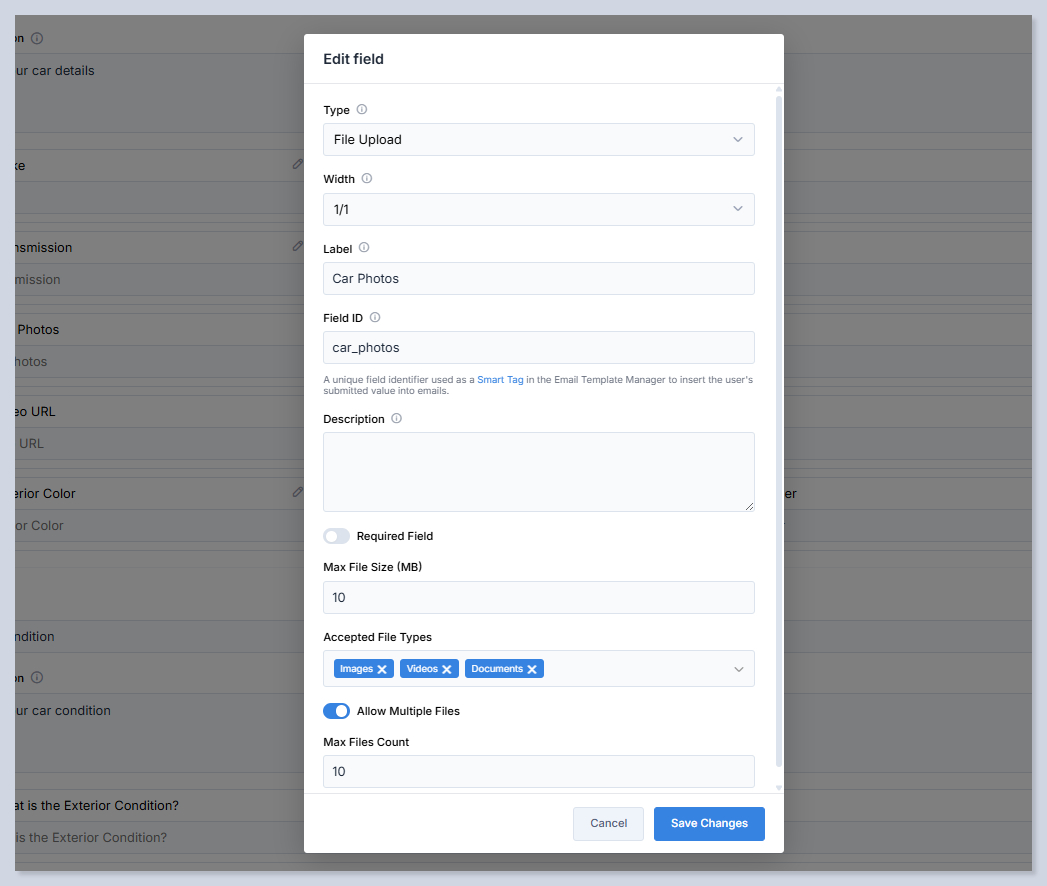
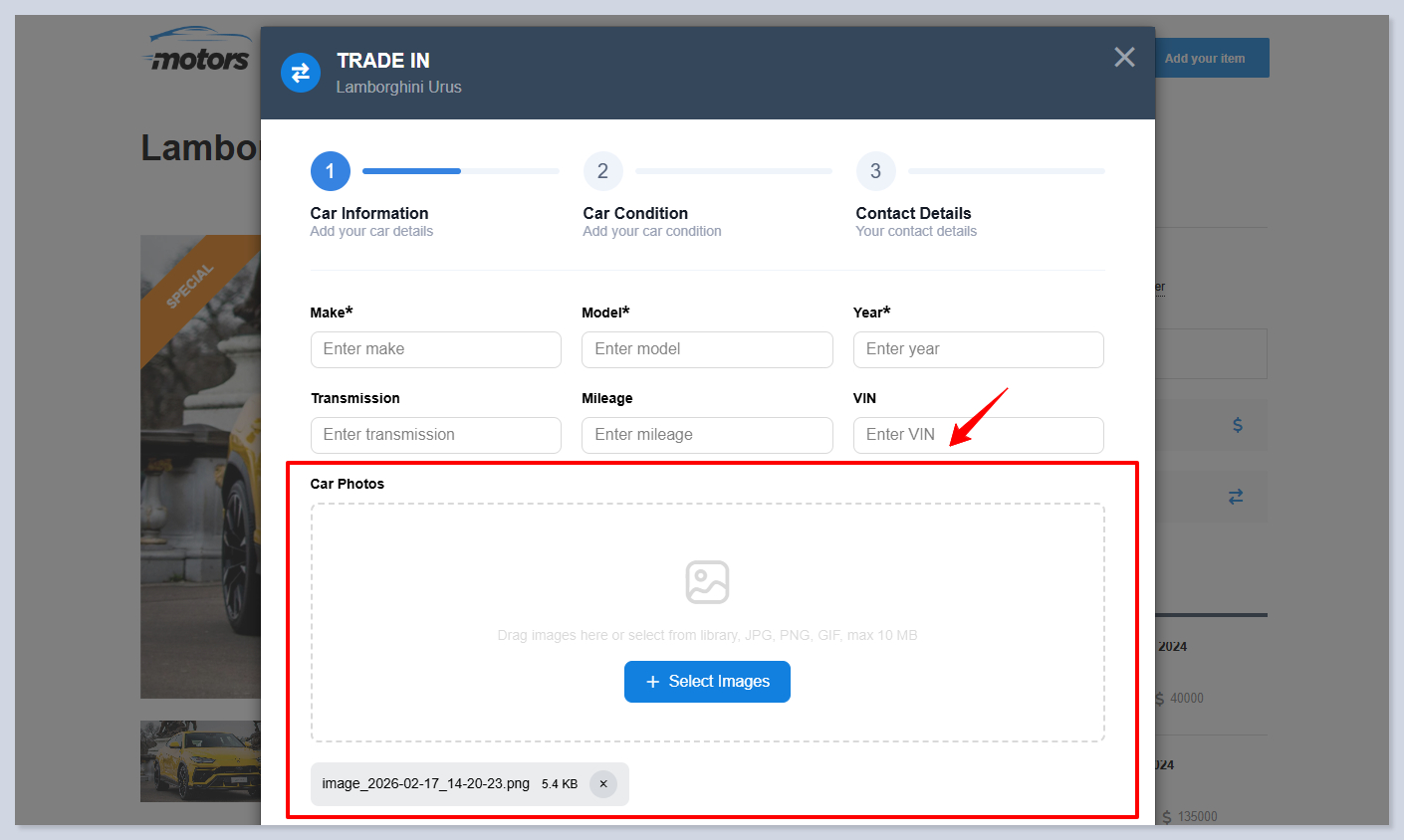
The File Upload element allows users to upload files directly through the form. It is commonly used for car photos, documents, inspection reports, or supporting materials. The element includes file size limits and type restrictions to ensure secure and controlled uploads.

Type - Defines the field (element) type.
Width - Controls how much horizontal space the field occupies in the row. A value of 1/1 means the upload field spans the full width.
Label - The visible name displayed above the upload field. It describes what files the user should upload.
Field ID - The unique internal identifier for the field. It is used by the system to process uploaded files and can be referenced as a Smart Tag in email templates.
Description - Additional explanatory text displayed with the upload field. It can include instructions about file requirements.
Required Field - When enabled, at least one file must be uploaded before the form can be submitted.
Max File Size (MB) - Defines the maximum allowed size for each uploaded file. Files exceeding this limit will be rejected.
Accepted File Types - Specifies which file categories are allowed, such as images, videos, or documents. This prevents unsupported uploads.
Allow Multiple Files - When enabled, users can upload more than one file in a single submission.
Max Files Count - Limits the total number of files a user can upload when multiple uploads are allowed.

Custom HTML
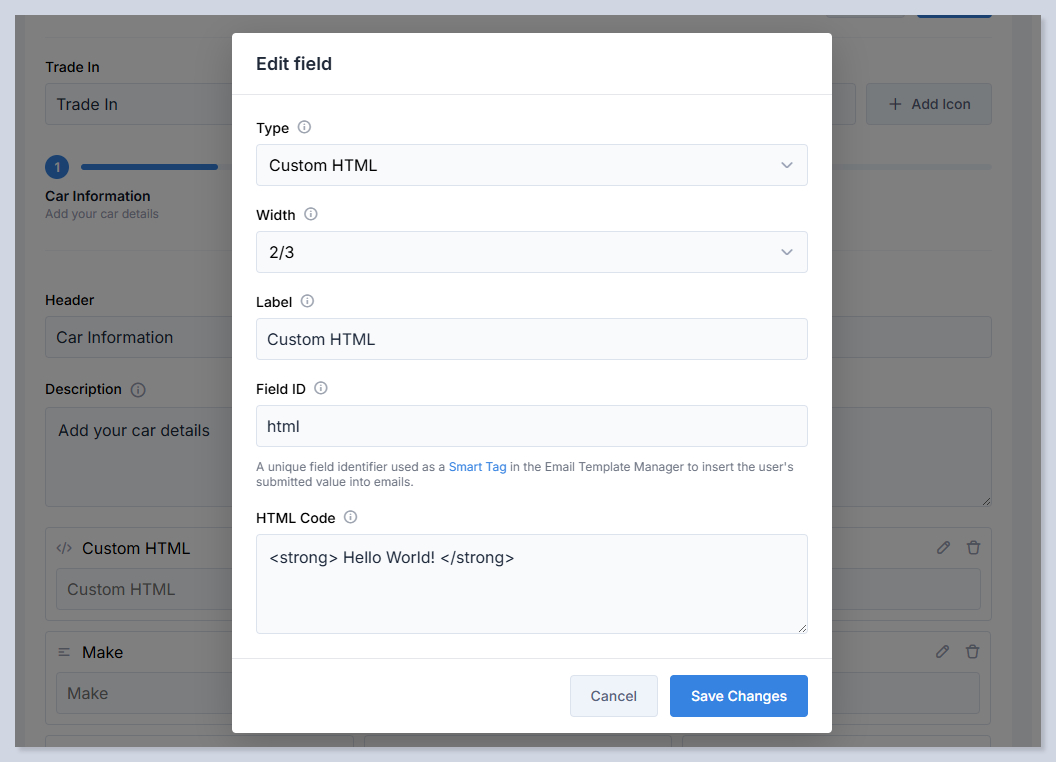
The Custom HTML element allows you to insert custom HTML code directly inside the form. It is intended for advanced customization such as adding formatted text, instructions, disclaimers or custom layouts. This element gives full control over additional content that is not limited to standard form fields.

Type - Defines the field (element) type.
Width - Controls how much horizontal space the HTML block occupies in the row. For example, 2/3 means the element takes two thirds of the row width.
Label - The internal name of the element used for identification inside the builder. It is not displayed to end users.
Field ID - The unique internal identifier for the element. It is used by the system and can be referenced as a Smart Tag in email templates if needed. However, Custom HTML field is not designet to take inputs from users.
HTML Code - The custom HTML content that will be rendered inside the form. This can include text formatting, links, embeds, or any supported HTML structure.
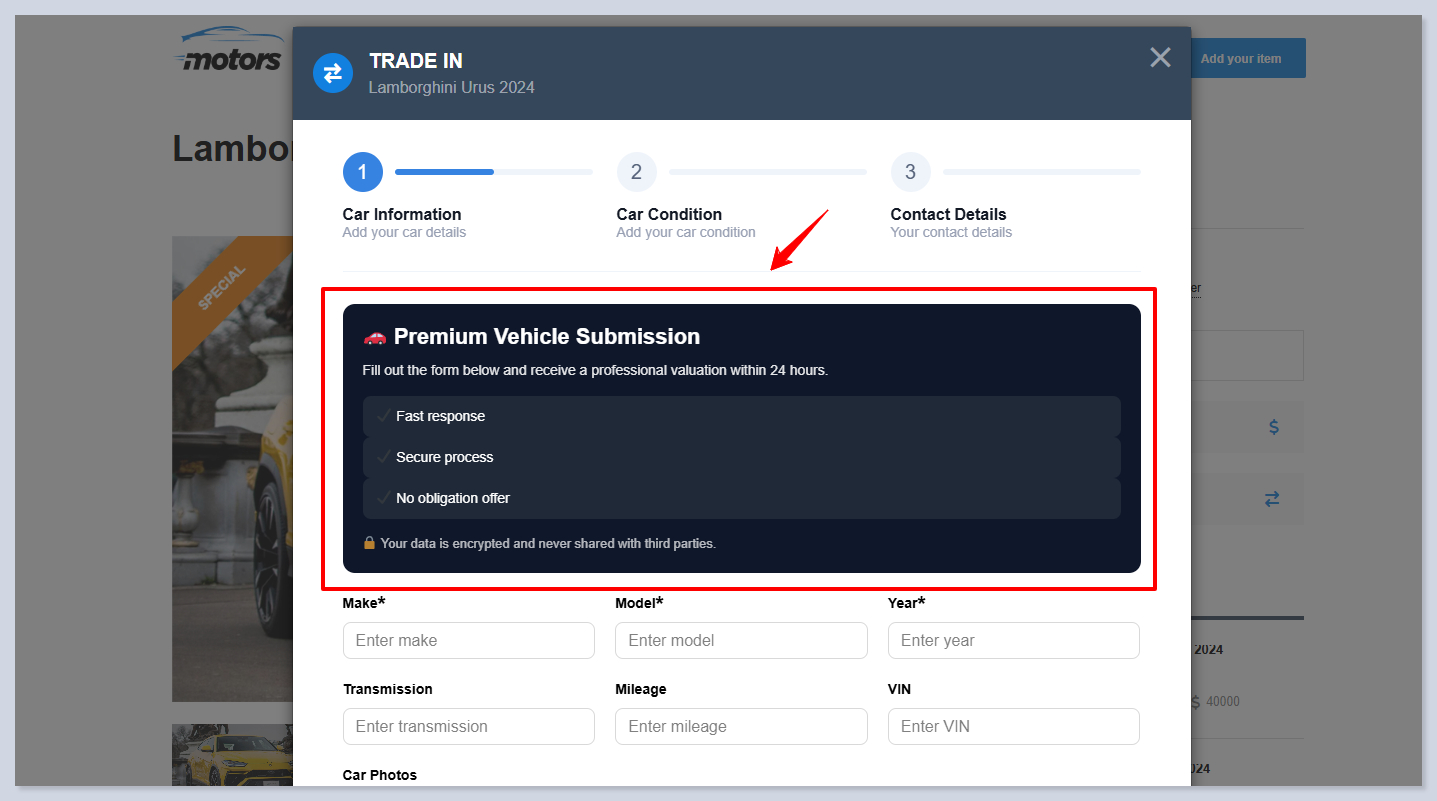
Here is the example code to try and it's result:

Forms
In the Form Builder, you can see the list of available form on the left sidebar. You can modif them according to your needs using Builder.
Once there is a response to the forms, admin/dealer will be notified automatically. That's why make sure that you have set up SMTP settings on your website accordingly. Outgoing email templates can be modified via Email Template Manager addon.
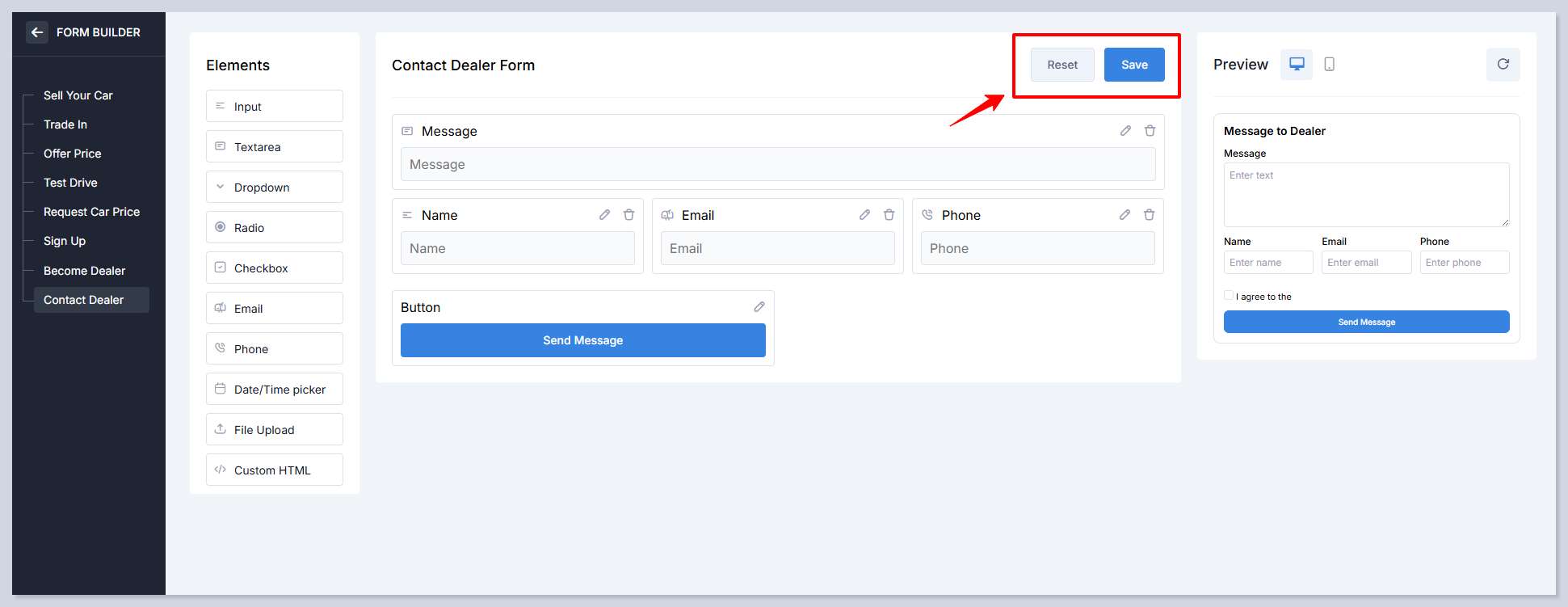
Once you made changes, do not forget to save the changes. Additionally, you can always reset the form to its default settings with standard fields:

Here are the all available forms:
A multi step form for users to submit full vehicle information for selling or valuation.
The page should be manually created via 'Sell Your Car' Elementor Widget.
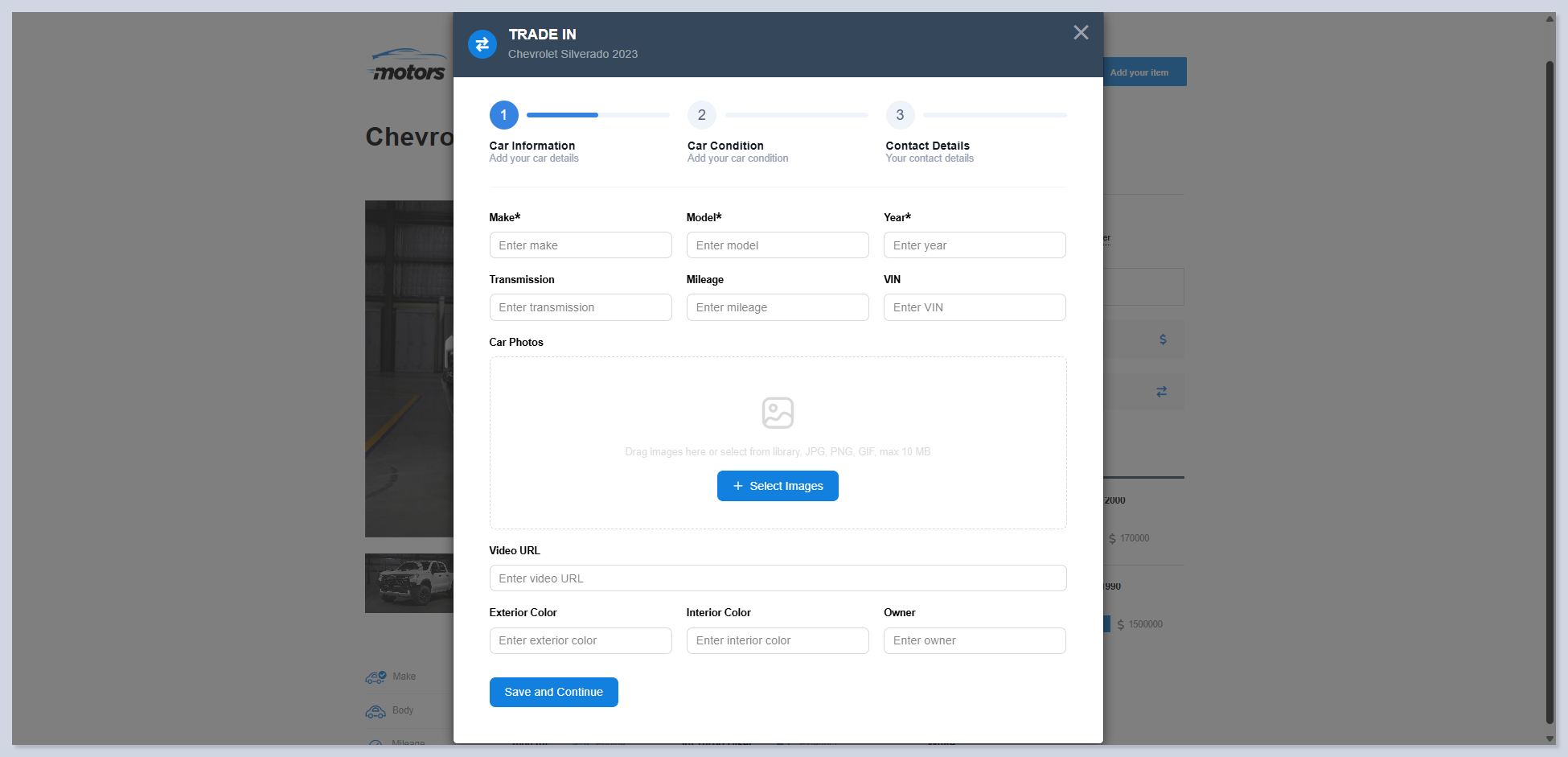
Collects detailed vehicle information from customers who want to trade in their car.
Single Listing Pages, Trade In button can be placed anywhere using Elementor.
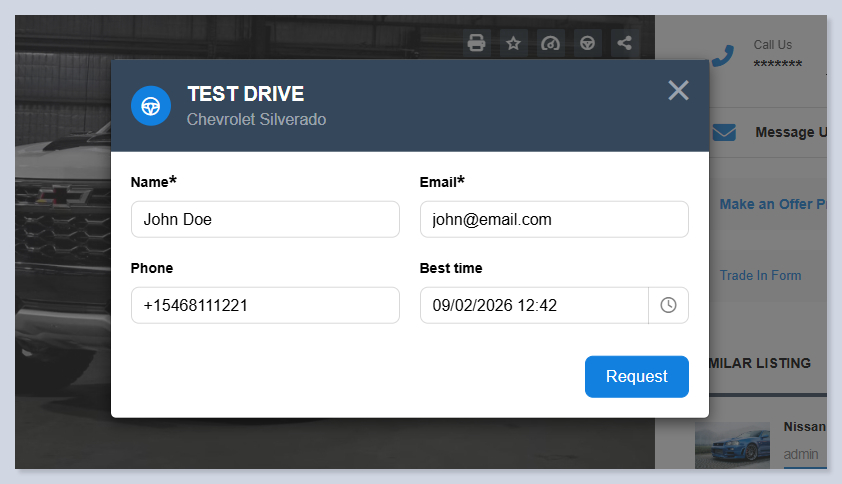
Lets customers book a test drive by choosing a preferred time and providing contact details.
Single Listing Page
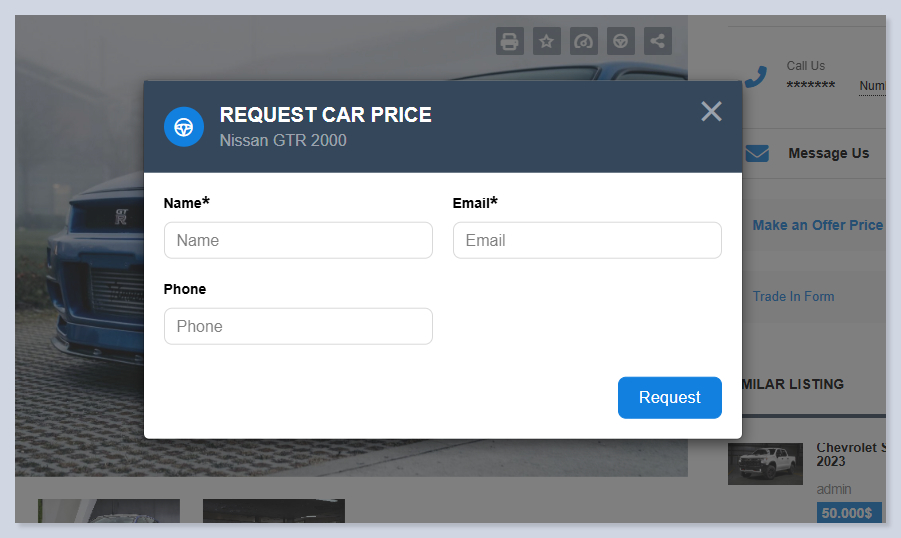
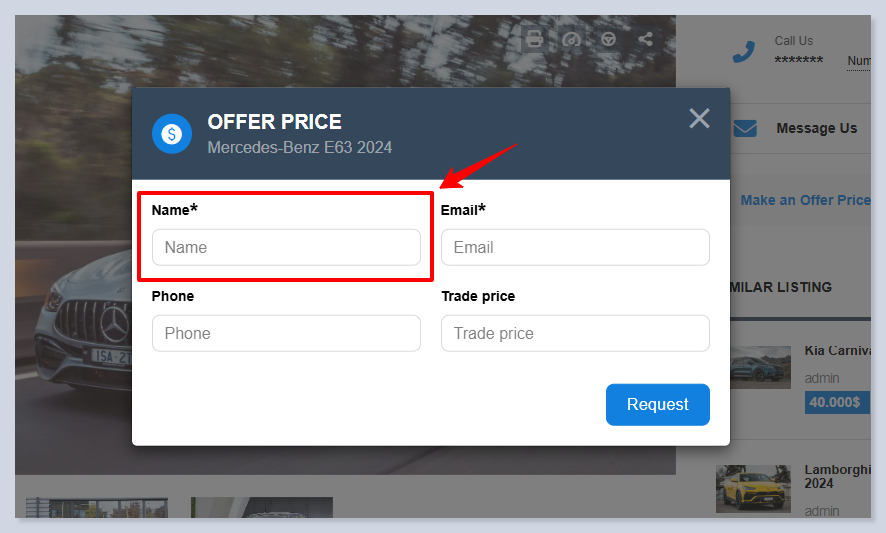
Allows visitors to request the price of a specific vehicle by submitting their contact details. Dealers can respond with a personalized offer.
Single Listing Page. Displayed when Request a Price setting is enabled from Listing Manager for the vehicle.
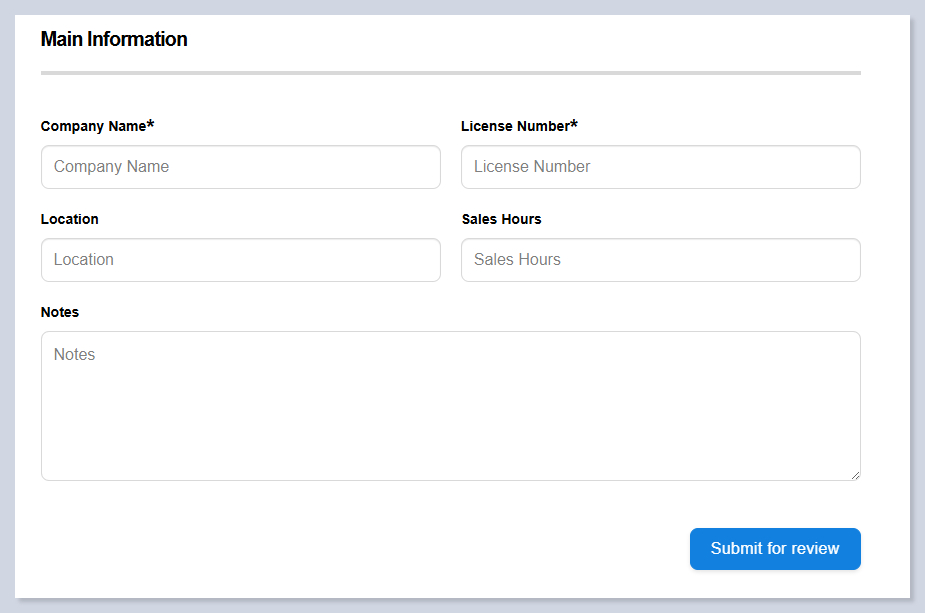
Used by users to apply for dealer status by submitting company details.
Profile Page. Displayed when Become a Dealer Button is enabled from Motors > Settings > Monetization.
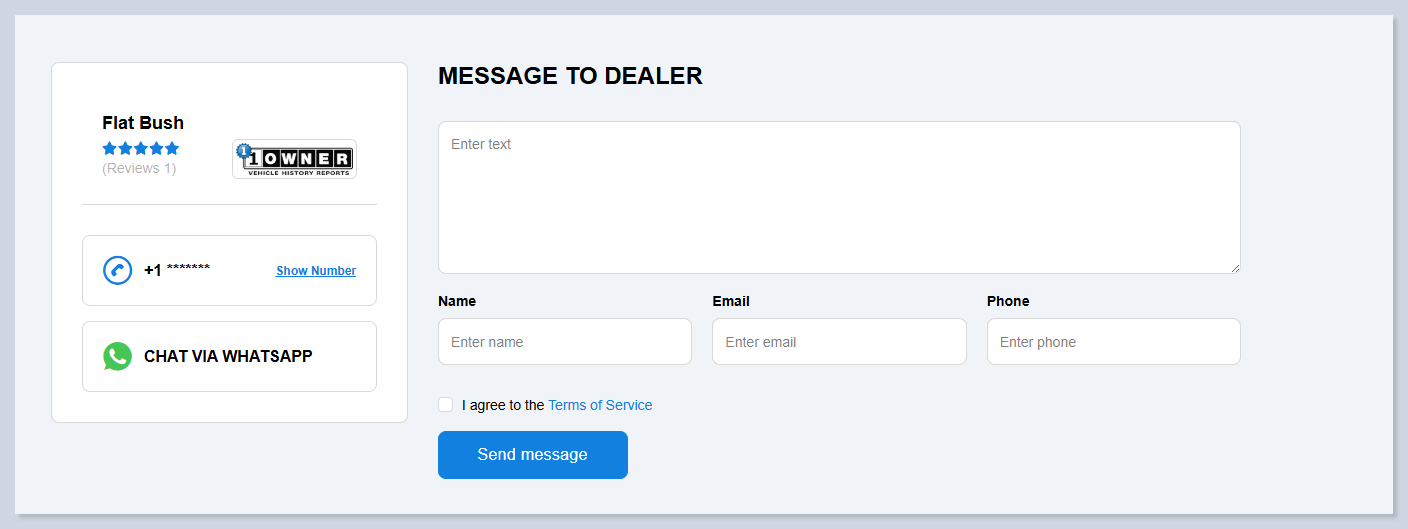
Provides a direct message form for customers to contact a dealer about a vehicle.
Single Listing Page
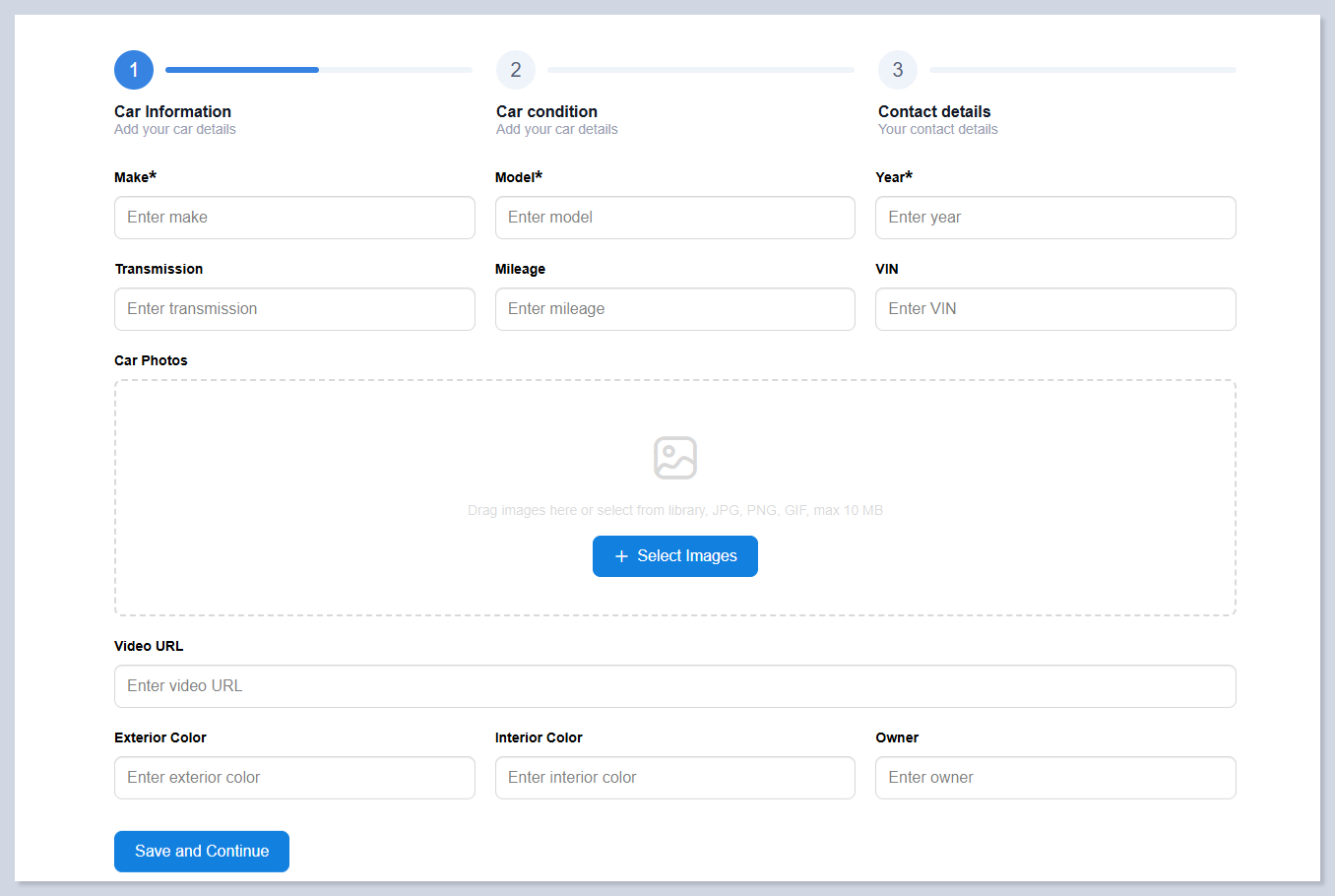
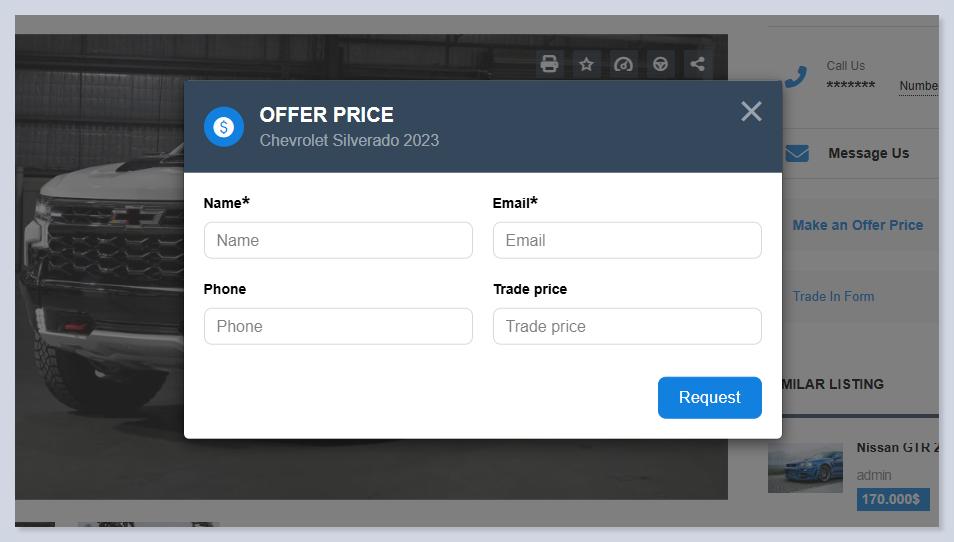
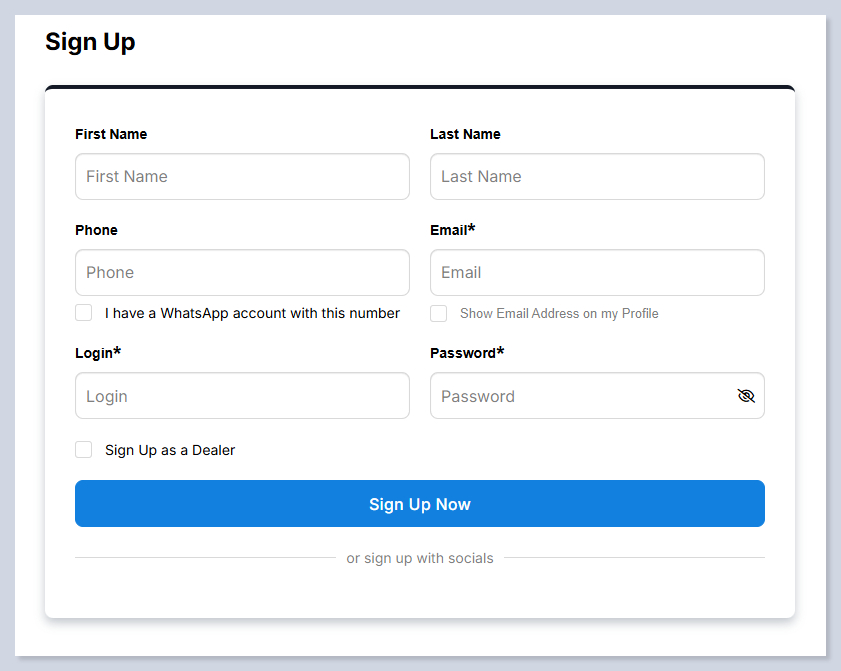
Here are the default looks of the forms:


Last updated
Was this helpful?